Traffic Monitor Alerts by email
Traffic Monitor Alerts allow for an email to automatically be sent to designated email recipients, biller and/or end customer, when a certain event happens, such as a threshold of data usage on a SIM or multiple SIMs in a subscription has been used.
Traffic monitor alert emails are sent to:
- customer email address to receive all traffic monitor alerts, see https://digitalskies.info/customer-account-creation/
- alert email address entered in the device details, to receive alerts for that specific device only, see https://digitalskies.info/edit-sim-card-details/
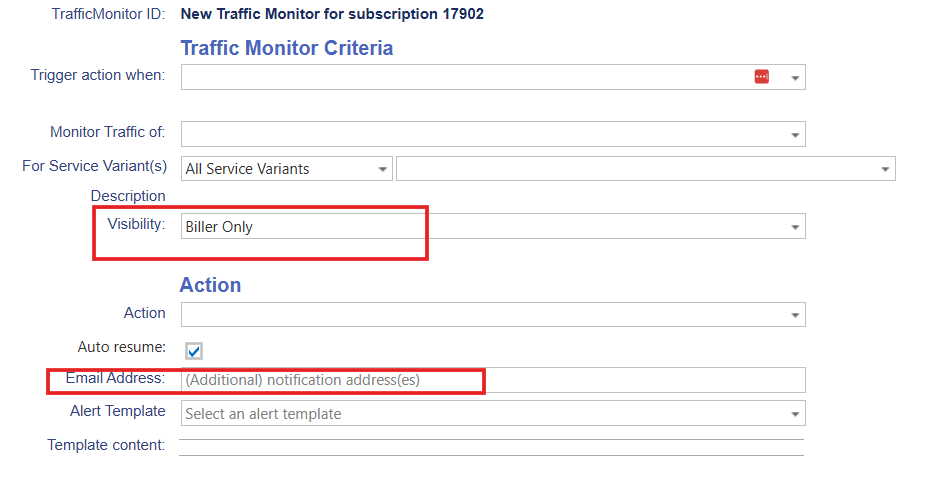
- email address added to the traffic monitor itself, see below
- biller email address (system setting tm_NotificationEmail)
*In case a traffic monitor triggers an alert, the email is not only sent to the alert address of the customer owning the card, but also to the parent customer (if any).
Traffic monitoring in a Provisioning only module versus Billing module
Please be aware there are limited options in traffic monitoring when the platform is not used for billing as the price plans will not have rates and allowances and therefor CDR traffic won’t represent a value. Traffic monitoring of volumes is available for Provisioning platforms, traffic monitoring of allowance and money value is only available for Billing platforms.
Validating CDRs
Traffic monitoring takes place after the rating of CDRs.
Monitoring requires rated CDRs because:
– Money based monitors require a price rated CDR
– Allowance based monitors require an allowance
– Price plan traffic monitors require a price plan
– Multiple SIM subscription monitors require a subscription
It is therefore important that Billers regularly check if there are rating errors. Unrated CDRs will not be counted in traffic usage until they are rated.
Change Plan and traffic monitors
Traffic monitors are copied from the old subscription to the new subscription of a device after a completed change plan.
Exception: when a device is changed from an allowance plan to a non allowance plan, any allowance based monitor will not be copied over.
Visibility of a traffic monitor
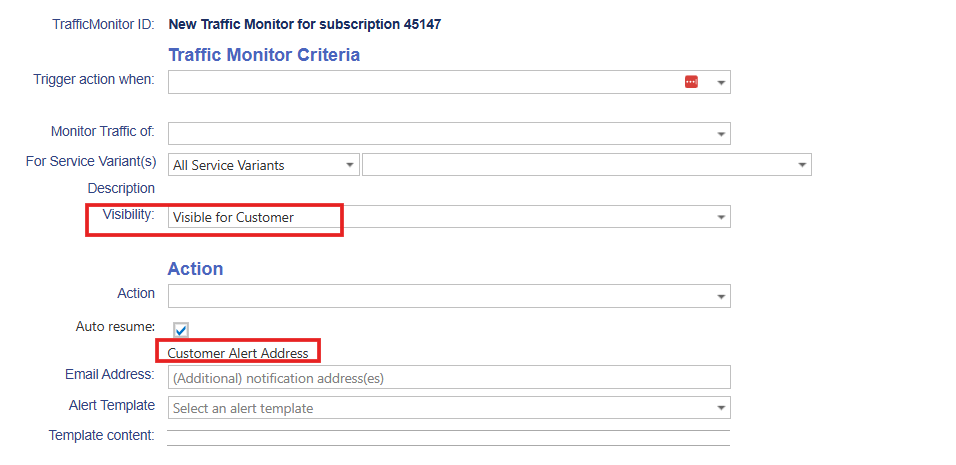
‘Visible for Customer’ is the default configuration. This means that a customer user in IBIS can see the monitor created on any device/subscription in its account.
‘Managed by Customer’ will give the customer user the option to make changes to a traffic monitor. When a customer cretaes its own traffic monitors, they will show as Managed by Customer.
‘Biller Only’ is used by the biller in case there is a need to create a traffic monitor that is not visible to a customer. The alert email won’t be sent to the traffic monitor email address of the customer account. The alert email will be sent to the Biller email address if this is set up in the system configuration, else the alert email will only be sent to the email address entered for the monitor itself.
Traffic monitors can be set up on a 1. SIM card level, 2. Subscription level (pooled subscription) and/or 3. Price plan level.
1. Traffic Monitor on SIM card level
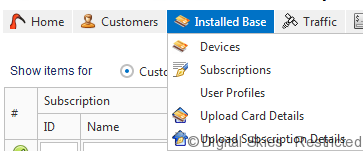
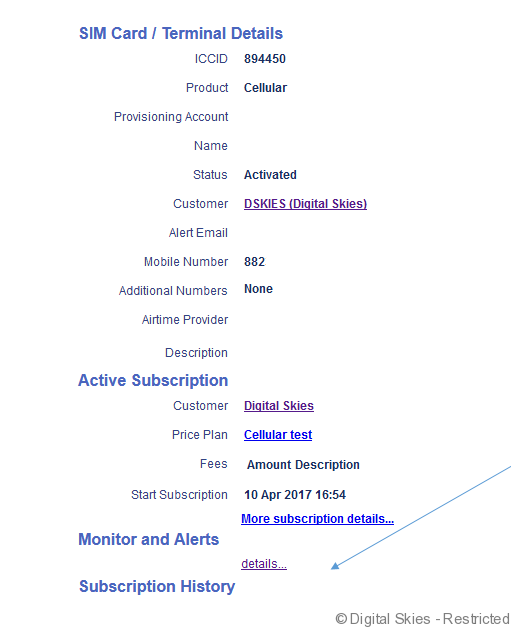
To create a traffic monitor on a SIM card, bring the SIM details up in IBIS. There are several ways of accessing this, such as through the [Installed Base] or going through the customer page.
Once the SIM card/Terminal details are open, select [Details] under the [Monitors and Alerts] Section.
The traffic monitor details page will be opened. To add a new [Monitor] click the green Add button near the middle left of the screen.
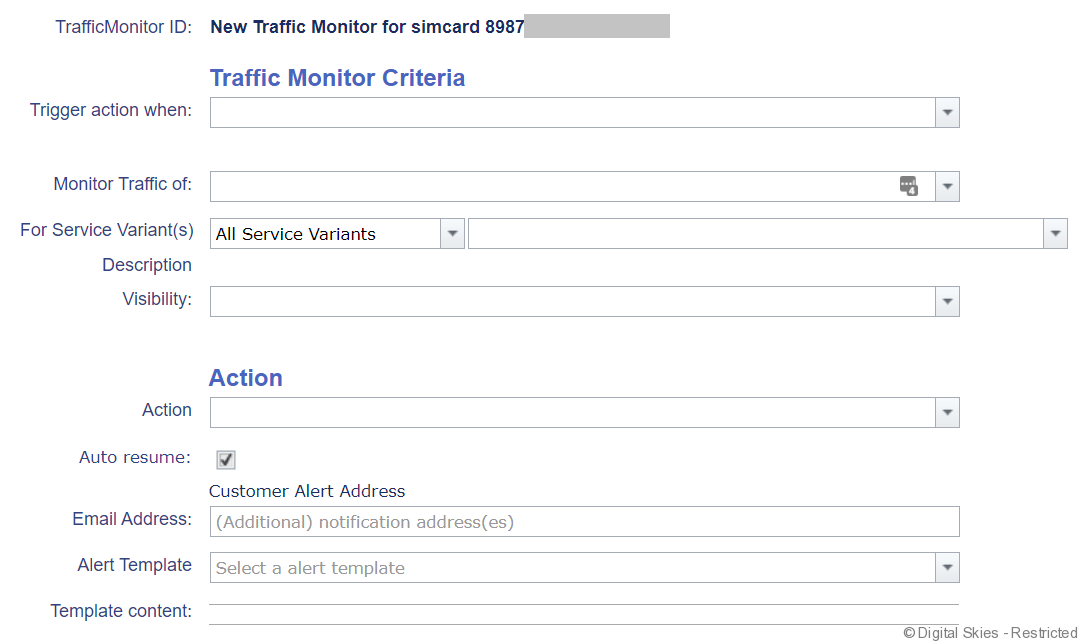
The Monitor Type shows the criteria that triggers the alert.
The two blank fields become available once a type is selected.
The Monitor Traffic Of Field determines if only the SIM is monitored, or, in case of a multiple SIMs subscription, if the combined usage of the SIMs in the subscription is monitored.
Action is the [Action] that takes place such as send email or auto-suspend the SIM. Alerts are automatically sent to the Alert Email address on the Customer details but additional emails can be entered here.
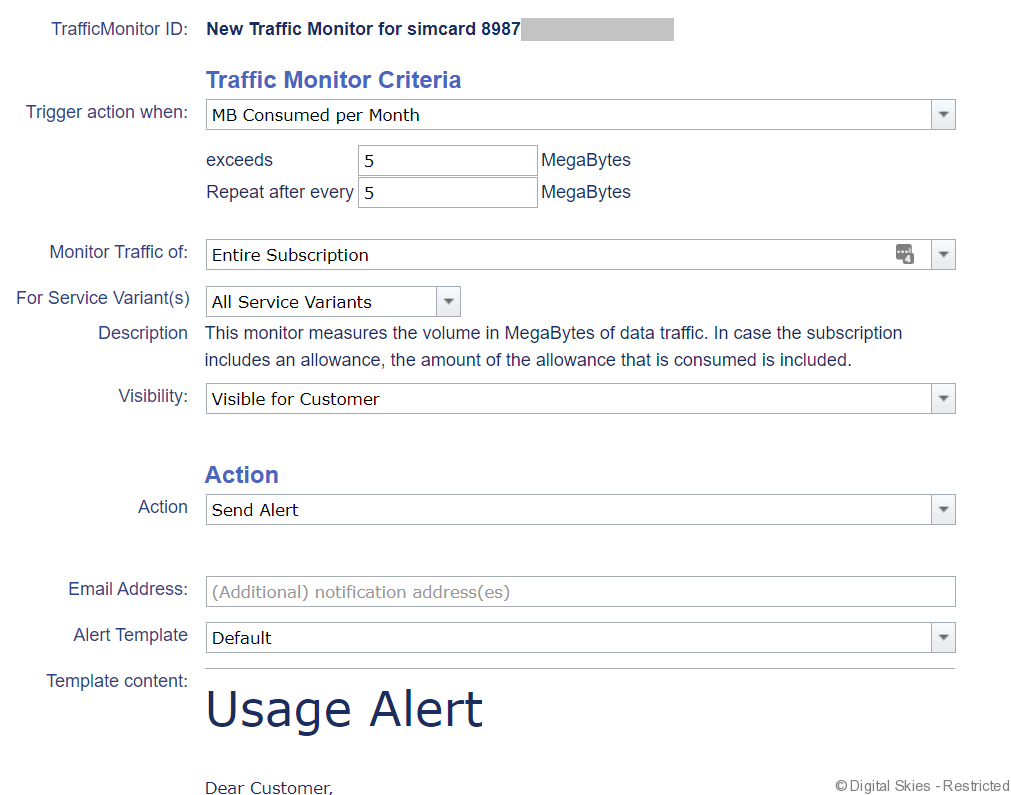
Once an [Action] is selected, available email templates are visible. An email is sent no matter what the [Action] is. In the email, the fields in brackets are automatically filled in by IBIS. To view and adjust Traffic Alert Templates, see Traffic Alert Templates
As an example – This monitor sends an email alert to the [Alert] emails once the subscription this SIM is part of, consumes 5 MB since the start of the month. It is repeated every 5 MBs consumed.
The available monitors can be broken down to Consumption Alerts and Commitment Alerts. Consumption Alerts are triggered when a Session, SIM or Subscription consumes a set amount of data, minutes, messages or money in a set time period.
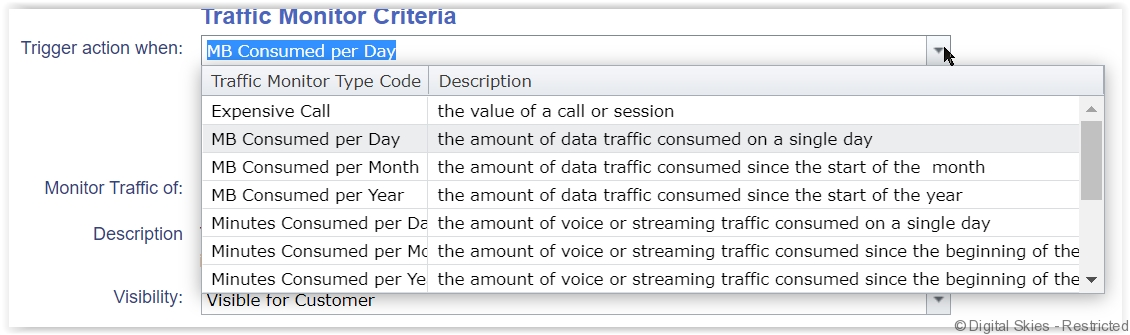
In October 2022 the option to monitor on the number of SMS messages has been added:

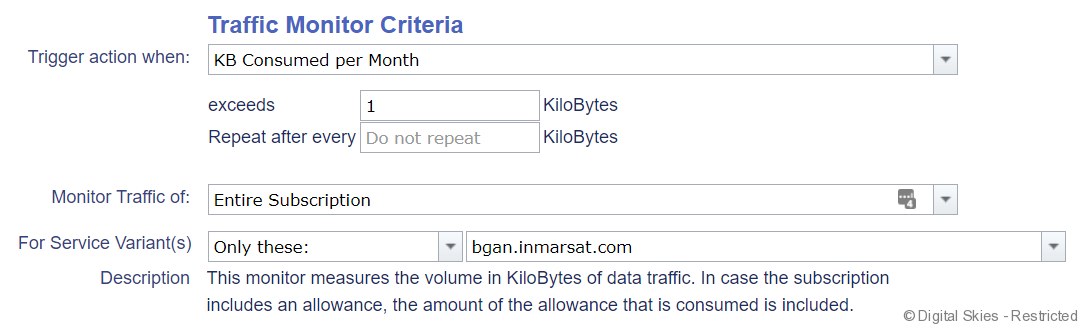
Service variants are used to specify or exclude specific variants such as APNs from the traffic monitor.
As an example, this monitor sends out an alert if 1 KiloByte of data is sent over the bgan.inmarsat.com APN.
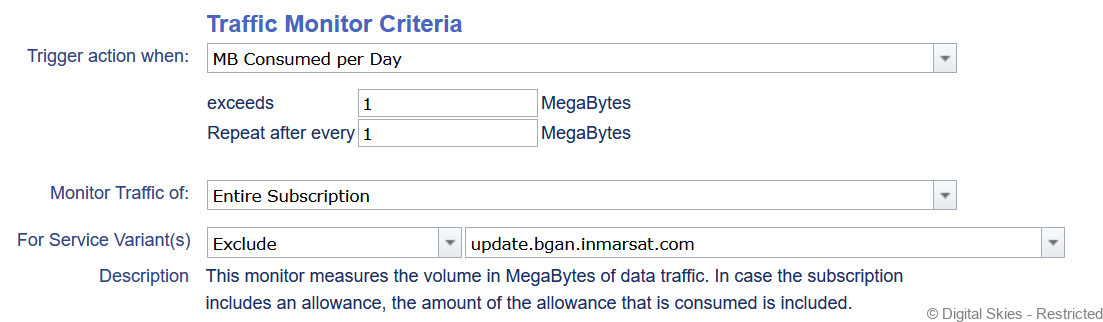
Service variants are frequently used to exclude traffic on 0 billing rated APNs, such as the update.bgan.inmarsat or ptt.bgan.inmarsat.com APN.
When adding new traffic monitors on BGAN M2M SIMs, the update.bgan.inmarsat.com APN will automatically populate as excluded.
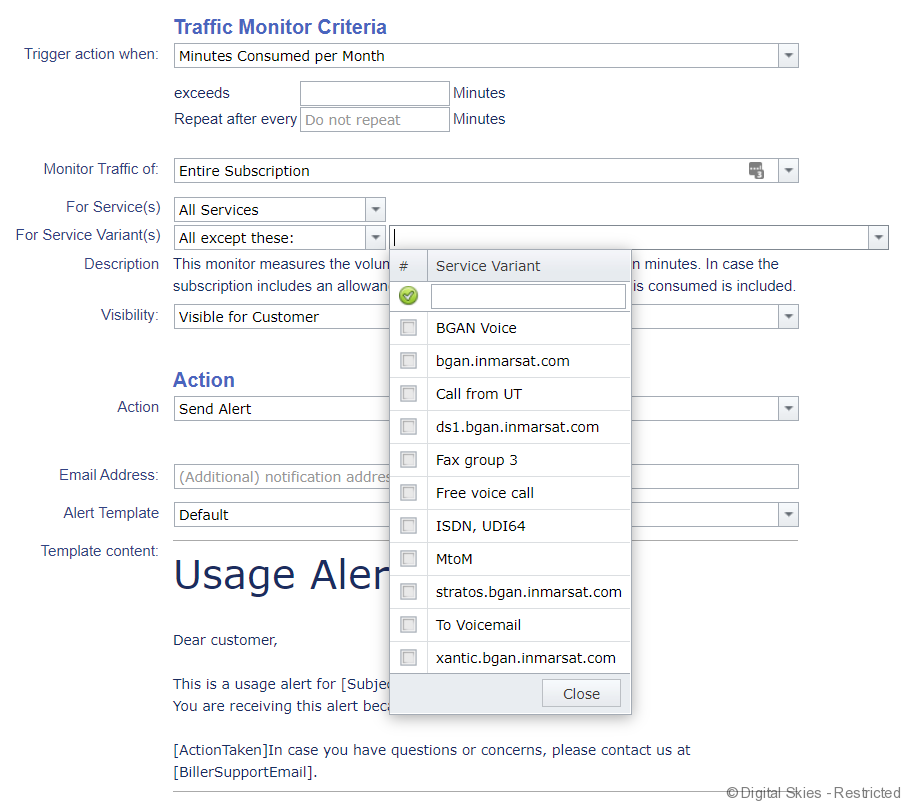
Service variants are populated based on the available variants for that monitor type. As shown in the example below, a monitor on minutes consumed per month will display Fax, ISDN, and other voice variants.
Multiple Alerts can be created to help manage usage. For example, sending an alert for high usage of a SIM for intervals and creating an Auto-Suspend alert when the same SIM reaches a different threshold ie. 5MB Alert, 10 MB Alert, 15 MB Auto-suspend.
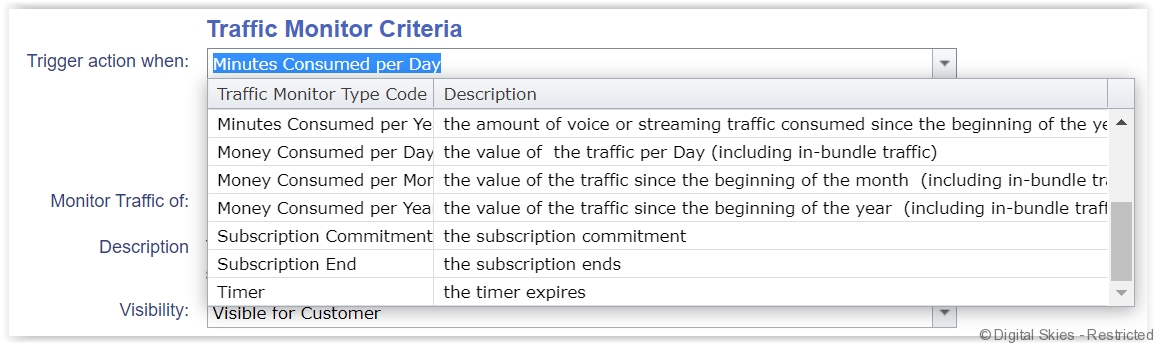
Commitment Alerts are triggered when the subscription is ending.
There are several Actions to select to be triggered when a monitor threshold is met:
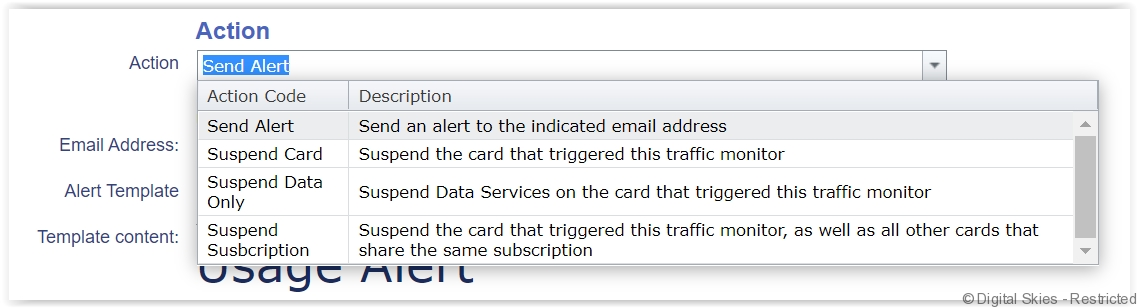
Send alert
In case a traffic monitor triggers an alert, this is not only sent to the alert address of the customer owning the card, but also to the parent customer (if any).
Suspend Card and Suspend Data only
When selecting any of the Suspend a highlighted text will appear to alert the user that there is a delay in the time of the suspension alert to the completion of suspension.

The selected Action to Suspend service will populate the following option to Auto-Resume services (depending on the set up of the monitor per day, per month or per allowance period).

IMPORTANT NOTES:
- Auto suspend monitors are depending of the frequency of CDR delivery from the satellite providers. While the suspension order is in progress and after the suspension order has been completed there is a window in which CDRs are generated and received. In general, a delay of up to 20 minutes should be taken into account*. I.e. an Inmarsat BGAN terminal has up to 20 minutes delay to receive CDRs, process in IBIS and suspend in the BSS.
- An Inmarsat IDP terminal has up to 65 minutes delay due to an hourly CDR feed. IDP terminals can not be suspended on the network.
- Traffic monitors can be set to monitor KiloBytes of data traffic. KiloByte monitors are recommended for lower volume data plans such as IDP and Short burst data.
- When selecting Suspend Data Only, traffic from the terminal will be blocked when it reaches the POP. The connection from the terminal itself is not blocked. These connection attempts will generate billable CDRs at the satellite provider.
- If there is an error with any step in the process it may delay the SIM card being suspended. It’s important the DP/SP monitors provisioning tasks and failures, see more information [Monitor Provisioning Tasks] https://digitalskies.info/monitor-provisioning-tasks/
To edit an existing monitor, click on the monitor ID.

When viewing against individual cards, users can not edit monitors set against a priceplan. To edit the monitor inside the priceplan, click the priceplan, then monitor and alerts.
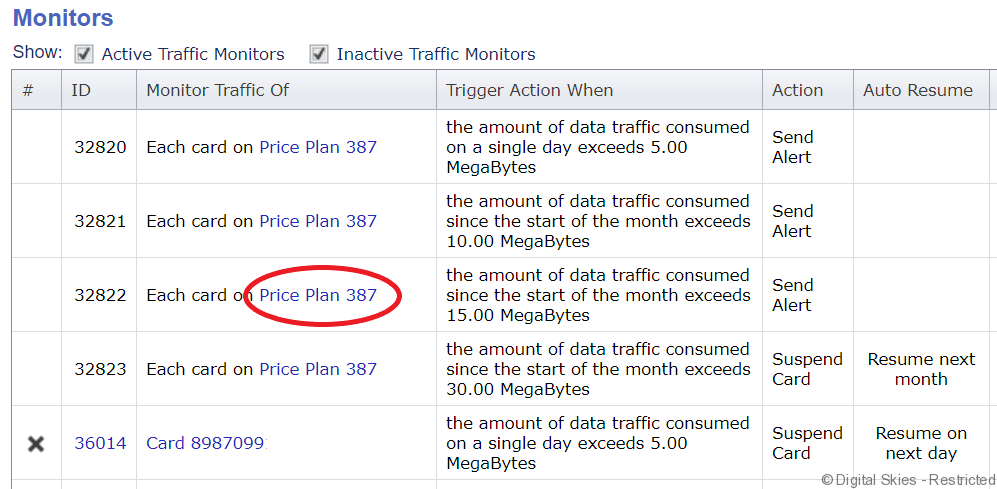
Below the Monitors there is a display of the Trigger History with the Monitor, CDR ID and timestamp.

If a monitor has been changed it is logged in the Last Modified Date:


2. Traffic Monitor on Subscription level
After a subscription has been created, a monitor can be placed on the subscription. Either for the total usage of any SIM belonging to that subscription or for the usage per SIM card.

Next to traffic monitors, there is also the option to set up a monitor on the subscription commitment date or expiration date:
This can be used to alert a customer about an upcoming subscription renewal or cancellation.
*NEW 2020* Volume based traffic monitors on pool subscription level. With this option you can monitor the traffic of an entire pool of subscriptions. you can NOT do an auto-suspend of the entire pool.
*NEW 2020* Allowance based traffic monitors are now available for Static Tiered subscriptions. If you create an allowance based traffic monitor on price plan level (like an alert for empty bundle), this will apply to all Pool subscriptions on the plan. On individual Static Tiered subscriptions, you can no longer create allowance-based monitors; these need to be managed on the Pool subscription, as this is the place where the allowance is maintained.
Monitoring usage on a DSG pool plan A Dynamic Pool doesn’t have allowance it self, but acts as the container for a number of subscriptions that each have an allowance. Allowance monitoring (remaining % and empty bundle)can be set up per individual subscription. The correct way to perform traffic monitoring across an entire DSG is to monitor MB volumes per month as that will cover all traffic. This approach requires to update the traffic monitor when the pool is extended with a new subscription.
3. Traffic Monitor on Price Plan level
In the Price plan details screen, there is a section that gives access to Traffic Monitor and Alerts.
Editing these monitors works the same way as traffic monitors on SIMcard/subscription level. The difference is the scope. When you create a traffic monitor on a price plan, it is applicable to all subscriptions or sim cards that are activated on the price plan.
Example: In the case below there is a traffic monitor that triggers an alert when the data traffic consumed since the beginning of any day exceeds 5MB. This traffic monitor is then applicable to each subscription that is activated on the price plan and also mentions how many SIMs are monitored, which are 6.
When you go into the details of one of these 6 individual subscriptions, you will find the price plan traffic monitor there as well.
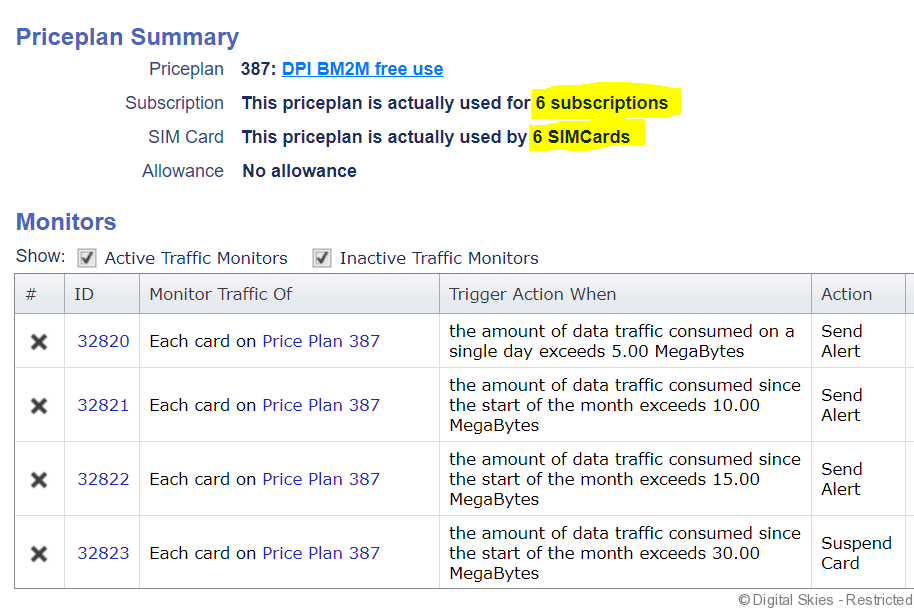
To Increase the traffic monitors on this price plan click Add.
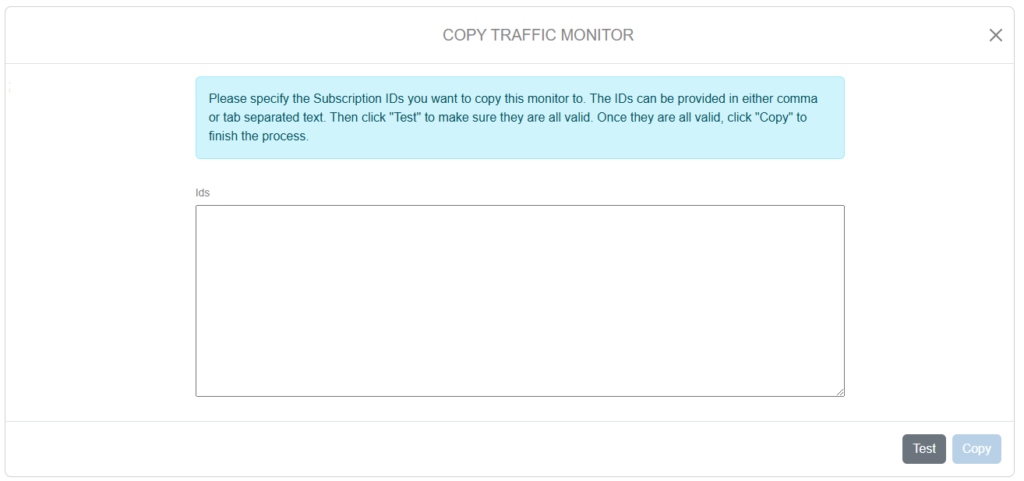
COPY traffic monitor
At the bottom of the traffic monitor screen there is an option to select Copy, which will direct to a screen with a box to enter Subscription IDs to copy the same monitor too.