
Terminal Management describes the available widgets, options and actions available against an individual terminal.
Session and network data are only available if the traffic was routed through Digital Skies PoP.
Browse terminals
Browse terminal inventory and pull reports on the percentage registered online per month/year.
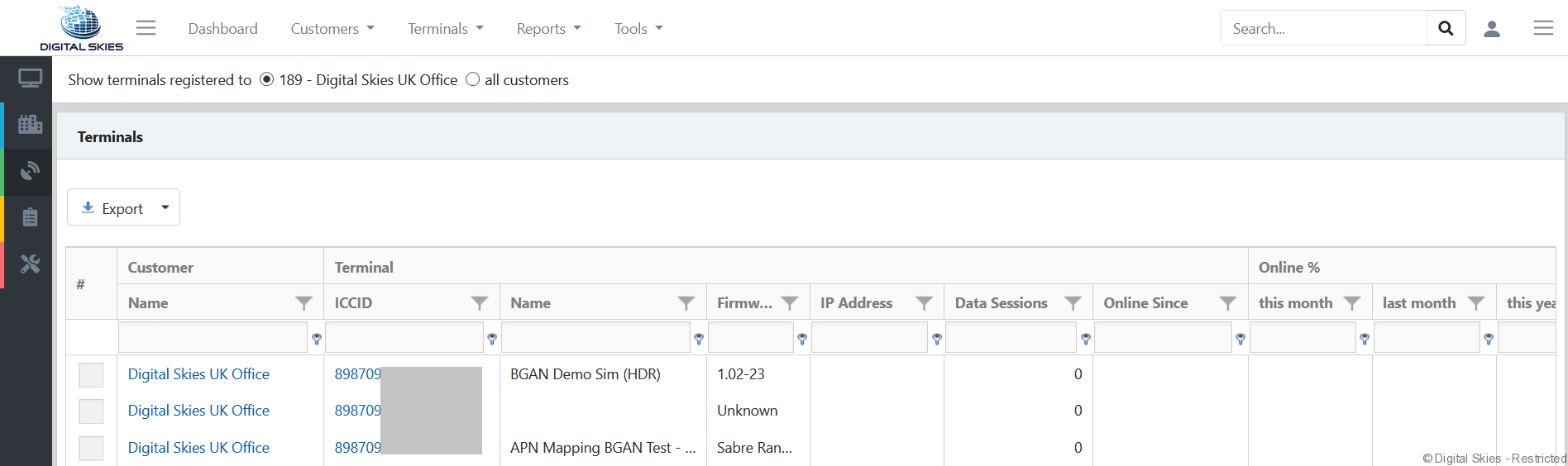
Terminal widgets and actions
Terminal landing page – Reporting, management, and control of the terminal.
Terminal
View and edit settings and descriptions listed against the terminal.
Set session alerts against the specific terminal.
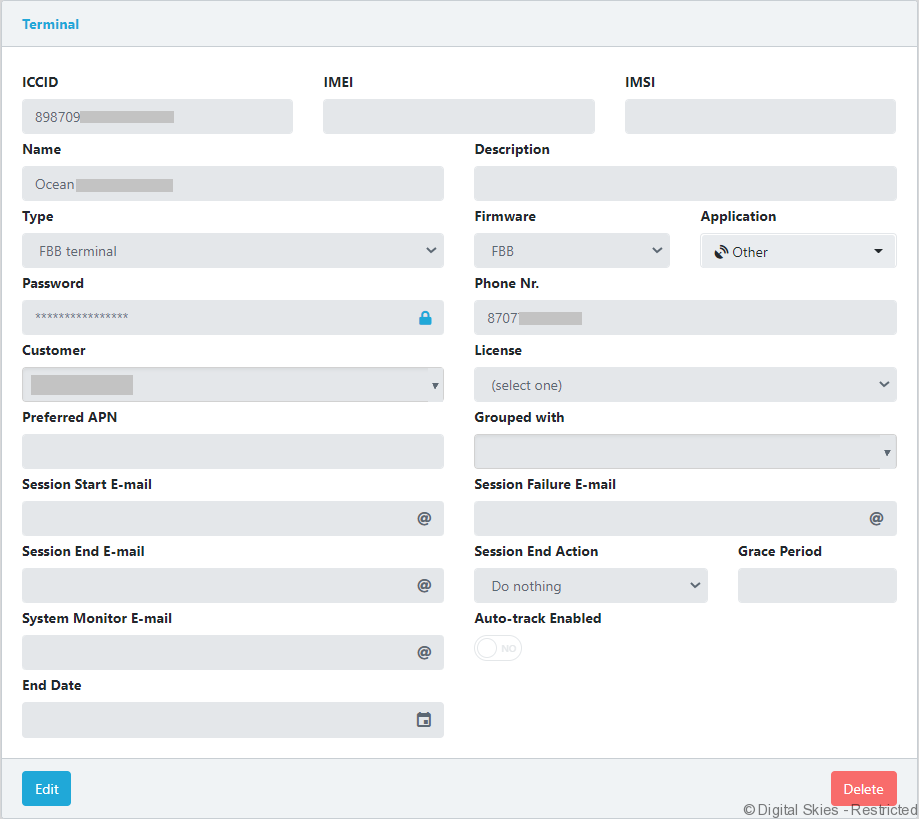
Use the [Edit] button to change any settings.
Recent Data Sessions
View the last 5 sessions reported by the terminal.
Click on the blue completed or running link, under status, to show the full report of completed or running sessions.
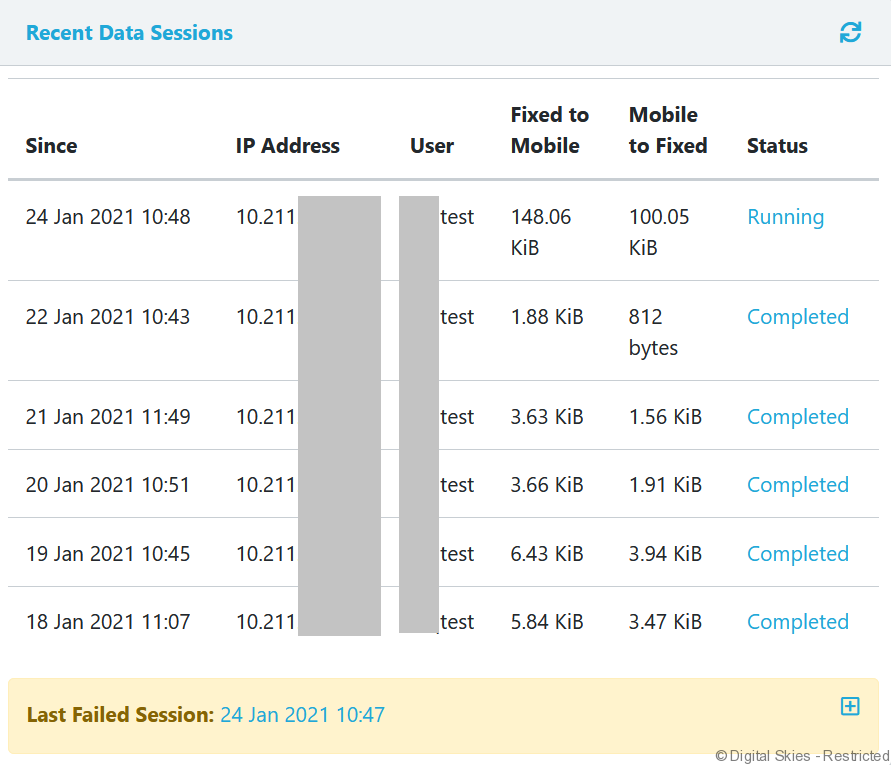
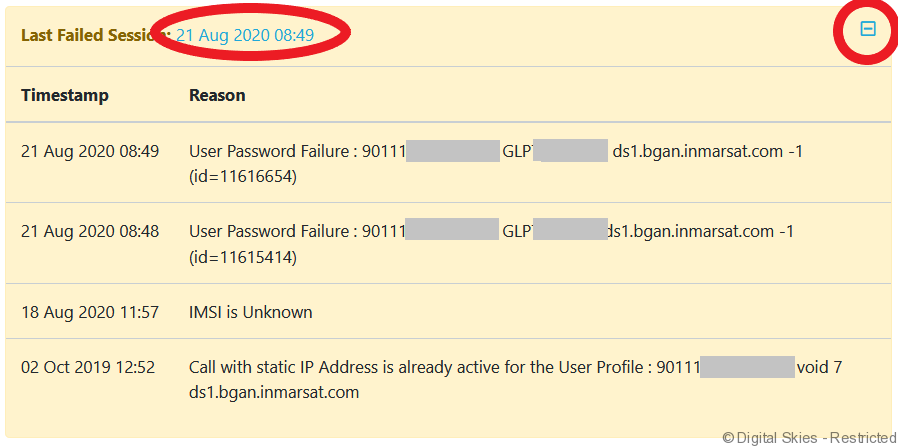
Click the date hyperlink to view the report on all failed sessions. Expand to show the last five sessions via the plus sign.
Throughput and volume
View throughput and volume recorded by the PoP.
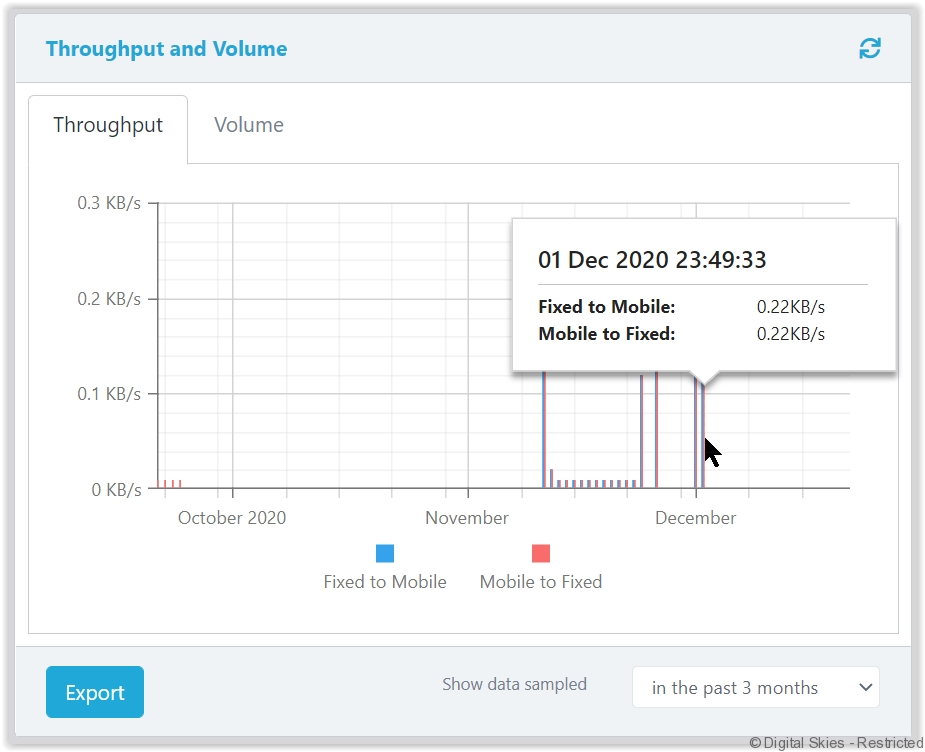
Filter by date range and use the [Export] button to download the chart as an image.
Terminal Actions
Available actions for the terminal.
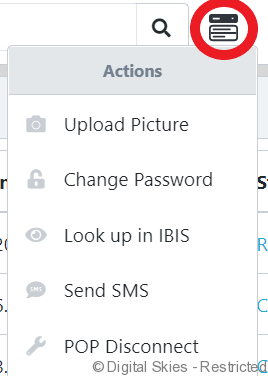
Upload picture – Upload a custom photo against this terminal. It’s suggested to upload photos of the original installation to assist with future troubleshooting.
Change Password – Change the saved password of the terminal in RTM.
Look up in IBIS – Link to the terminal details page in IBIS.
Send SMS – Send a custom SMS to the terminals listed mobile number.
PoP Disconnect- Request to kill the session remotely in the PoP.