
Traffic Monitor Alerts allow for an email to automatically be sent to designated email recipients, biller and/or end customer, when a certain event happens, such as when a threshold of data usage on one or more IDP terminals has been used.
Important:
Traffic monitoring takes place after the rating of CDRs.
Monitoring requires rated CDRs because:
– Money based monitors require a price rated CDR
– Allowance based monitors require an allowance
– Price plan traffic monitors require a price plan
– Multiple SIM subscription monitors require a subscription
It is therefore important to regularly check for rating errors.
In case a traffic monitor triggers an alert, this is not only sent to the alert address of the customer owning the card, but also to the parent customer (if any).
Traffic monitors can be set up on a 1. SIM card level, 2. Subscription level (pooled subscription) and/or 3. Price plan level.
1. Traffic Monitor on IDP terminal level
To create a traffic monitor on a SIM card, bring the SIM details up in IBIS. There are several ways of accessing this, such as through the [Installed Base] or going through the customer page.
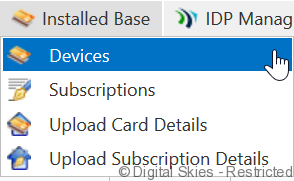
Once the IDP Terminal details are open, select [Details] under the [Monitors and Alerts] Section.

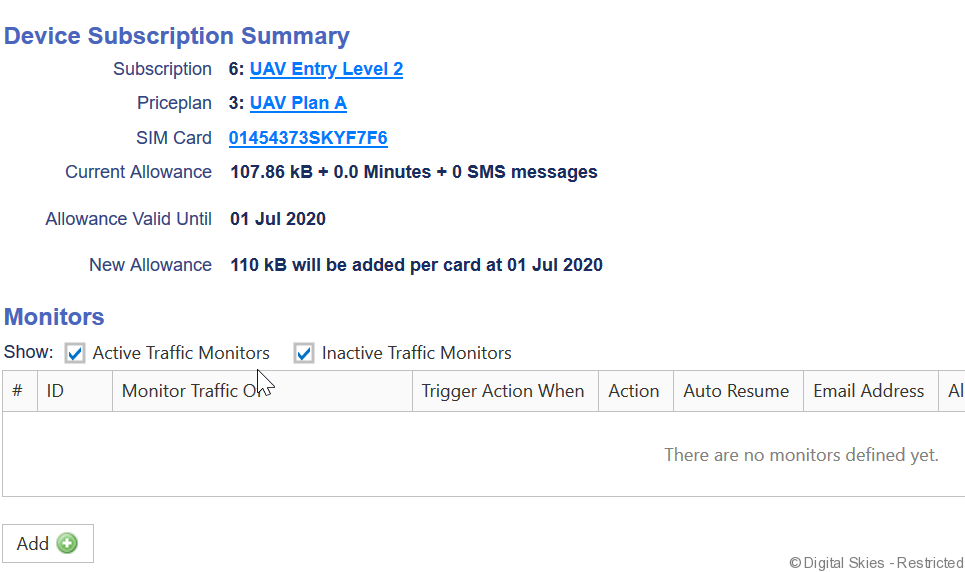
The [Device Subscription Summary] will give an indication of allowances included in the subscription, which can be used as a guidance to set up monitoring.
To add a new [Monitor] click the green [Add] button on the bottom of the screen.
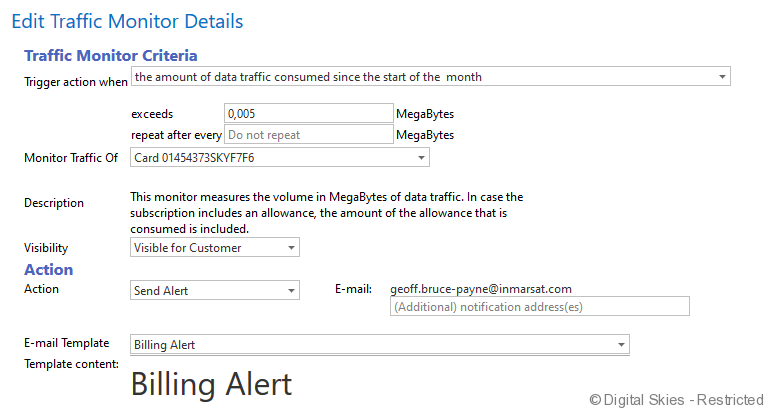
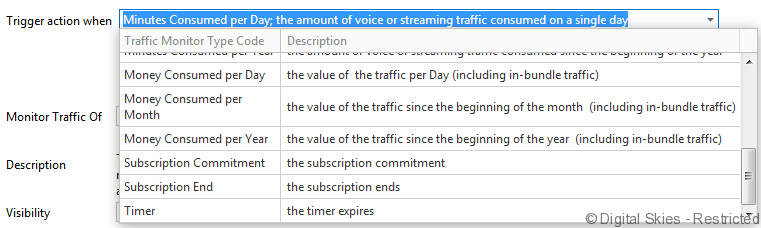
The Monitor Type shows the criteria that trigger the alert.
The two blank fields become available once a type is selected.
The Monitor Traffic Of Field determines if only the IDP terminal is monitored, or, in case of a multiple terminals, the subscription, if the combined usage of the terminals in the subscription is monitored.
Action is the [Action] that takes place, for IDP this will always be to send an email alert, as suspending is not available. Alerts are automatically sent to the Alert Email address on the Customer details but additional emails can be entered here.
In the email, the fields in brackets are automatically filled in by IBIS. To view and adjust Traffic Alert Templates, see Traffic Alert Templates
The available monitors can be broken down to Consumption Alerts and Commitment Alerts. Consumption Alerts are triggered when a Session, SIM or Subscription consumes a set amount of data, minutes, or money in a set time period.
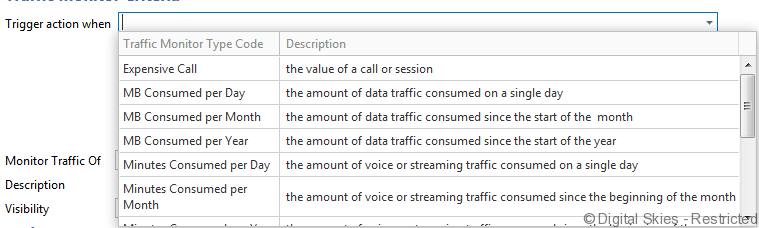
Commitment Alerts are triggered when the subscription is ending.
Send alert
In case a traffic monitor triggers an alert, this is not only sent to the alert address of the customer owning the card, but also to the parent customer (if any).
IMPORTANT NOTES:
Monitors are depending on the frequency of CDR delivery from Inmarsat. It may take up to 15 minutes delay to receive CDRs, and approximately 1 minute to process the traffic data in IBIS.
Below the Monitors there is a display of the Trigger History with the Monitor, CDR ID and timestamp.

If a monitor has been changed it is logged in the Last Modified Date:


2. Traffic Monitor on Subscription level
After a subscription has been created, a monitor can be placed on the subscription. Either for the total usage of any IDP terminal belonging to that subscription or for the usage per IDP terminal.
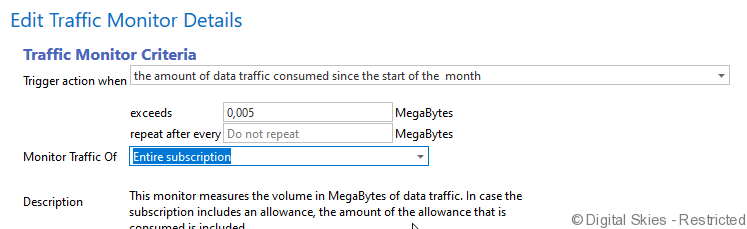
Next to traffic monitors, there is also the option to set up a monitor on the subscription commitment date or expiration date:
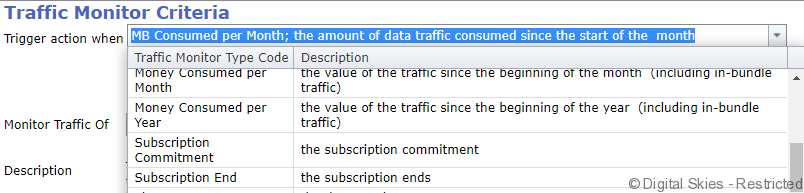
This can be used to alert a customer about an upcoming subscription renewal or cancellation.
3. Traffic Monitor on Price Plan level
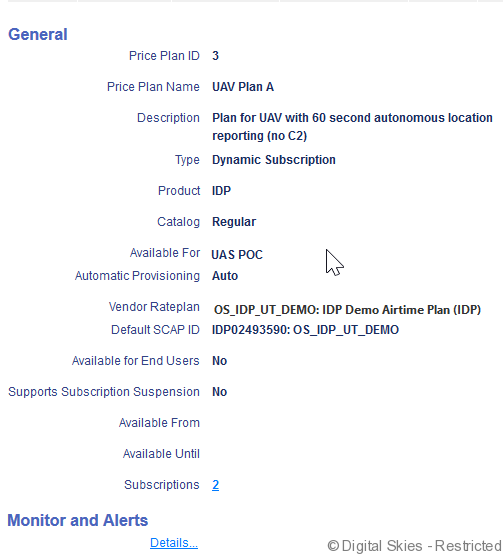
In the Price plan details screen, there is a section that gives access to Traffic Monitor and Alerts, which is reached by clicking on the plan.
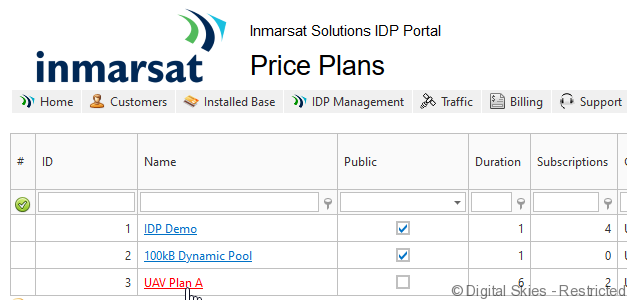
Editing these monitors works the same way as traffic monitors on SIMcard/subscription level. The difference is the scope. When you create a traffic monitor on a price plan, it is applicable to all subscriptions or sim cards that are activated on the price plan.
Similar to the other monitors, there is first a summary of the priceplan, and then the option to add a monitor.
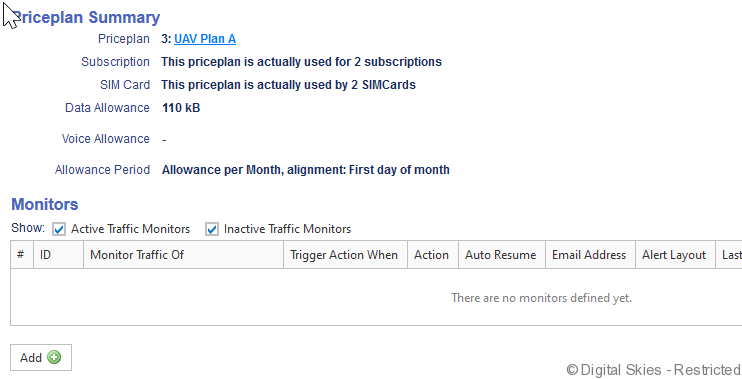
To Increase the traffic monitors on this price plan click Add.