
It is possible to do top-ups on any iVent bundles with allowance. There are several steps to this. The first two steps, creating the fee type and adding the fee to a price plan can only be done by iVent. The third step, adding the top-up, can be done by iVent customers.
Fee type creation
Go to [Tools] [Reference tables] and select [Fee types]. On top of the page, select the [+] sign to add a new fee. This has to be done for every type of top-up. The following fees have already been created for iVent:
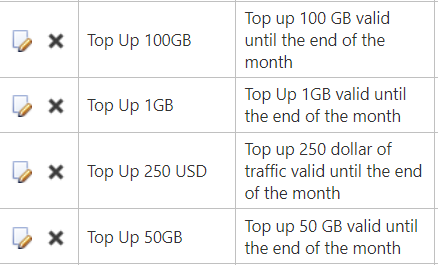
Fees can be updated by clicking the edit icon at the beginning of the line. If a new fee has to be added, select the blue + sign in the top left corner of the table.
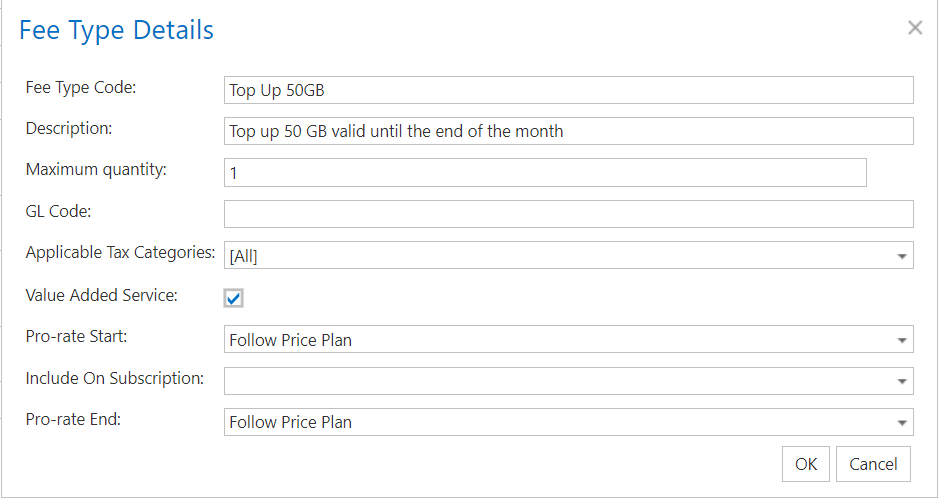
Please ensure the [Value Added Service] box is ticked, as this will be required for the next steps.
Adding the fee to the price plan
Once the fee has been created, it needs to be added to any price plans that allow top-ups.
Go to [Billing] [Manage Price Plans] and select the price plan to add the top-up fees to. On the bottom of the page, select the [+] sign in the VAS Fees box.
From the drop-down menu, select the top-up that was created in the previous step.
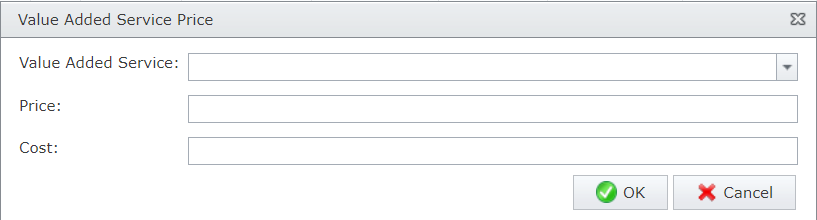
Press [OK] to complete the VAS fee and save the price plan.
Adding the top-up to the active iVent SIM card
Go the terminal details page in mySIM Retail, go to the subscription details. The current remaining allowance as well as the top-up history of the SIM card is available.
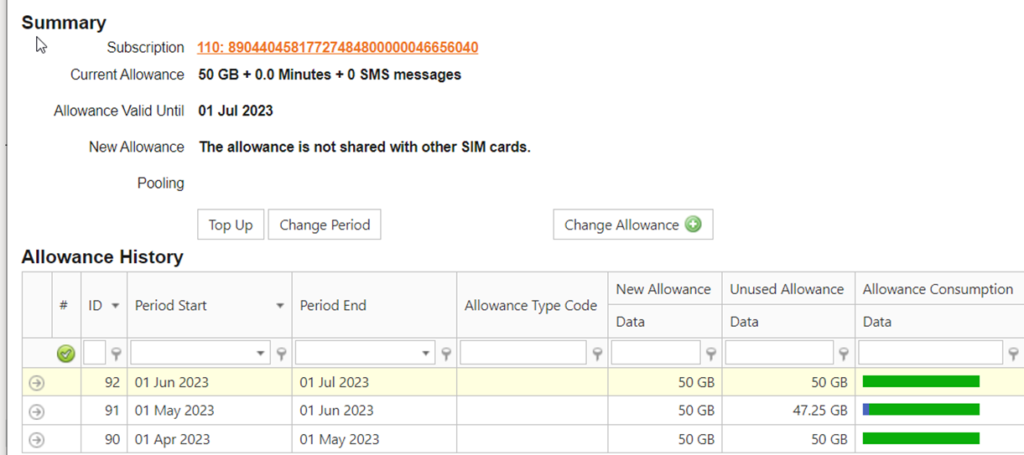
To add a top up, select the [Top Up] button, a pop-up screen will appear prompting the selection of a top-up quantity.
What happens after a top-up?
If the SIM card is automatically suspended because the traffic bundle was empty, a top-up will create an automatic resume order.
If the SIM card is not suspended, it will add the top-up to the allowance and the SIM card will not suspend, even if the allowance on the price plan has run out, as long as there still is top-up allowance available.