
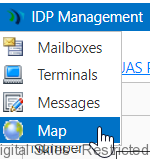
The map option shows the latest GPS report of all the terminals.
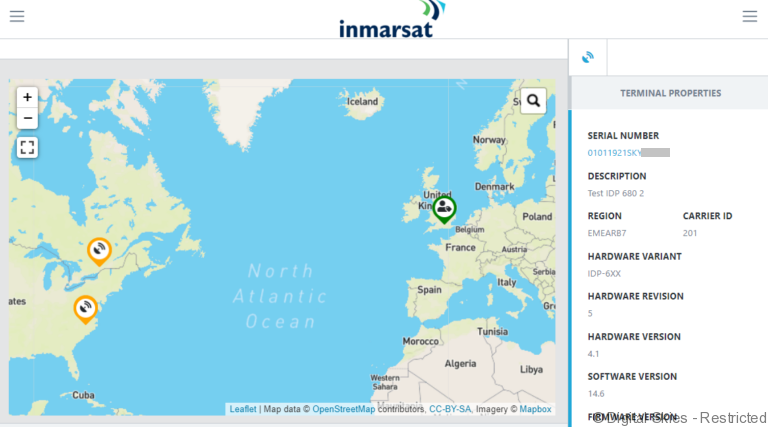
Green = Terminal has been active in the last 48 hours
Orange = Terminal has been inactive in the last 48 hours
Red = Terminal is deactivated.
Tip: Click on the hamburger in the top right to hide de-activated terminals.
To view a terminal’s path and other terminal details, click the marker on the map.
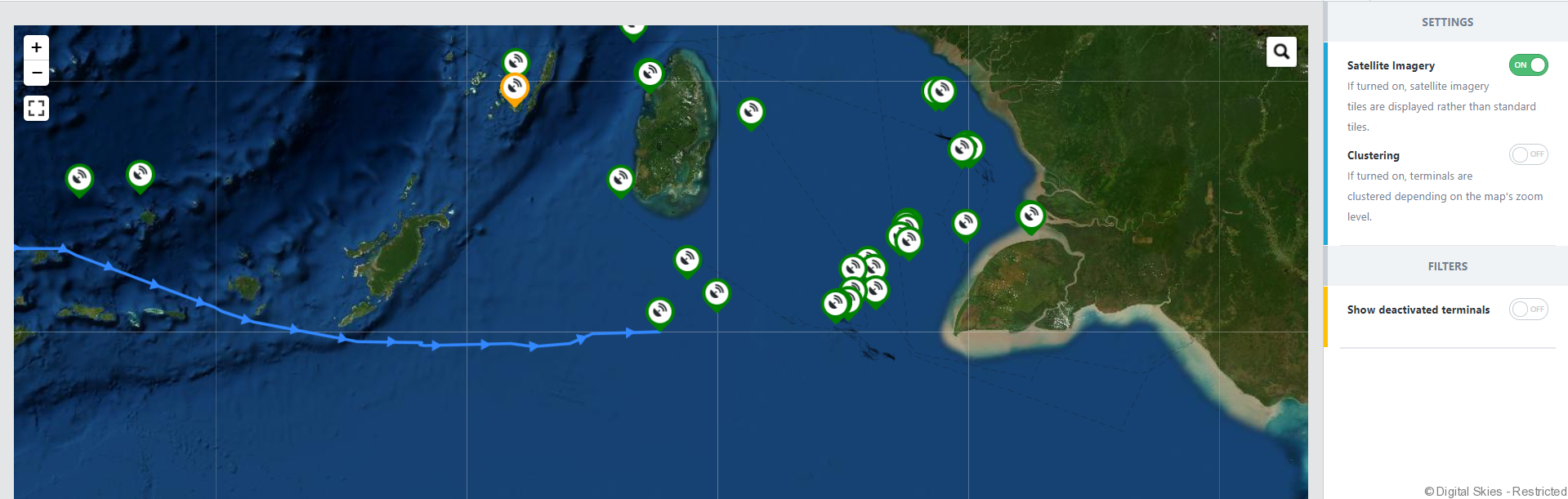
Users can click on the hamburger to switch between a standard or satellite image based map.
The starting point of the path the first position that is transmitted after a terminal was offline for more than 24 hours.
If the distance between the last reported position is less then 35 metres, then no GPS report is created as the terminal is seen as stationary.
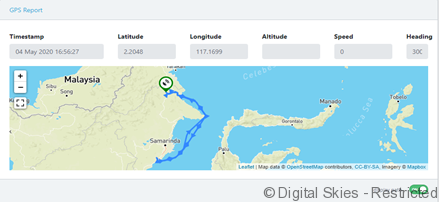
On GPS report in an individual terminals screen press [display path] to bring up the path of the terminal.