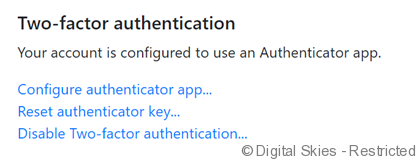
Two factor authentication is available in the latest version of IBIS. If you have any questions on whether this is already available for your IBIS, please contact our support department or your account manager.
Adding two factor authentication in IBIS
Please note: adding two factor authentication to a user is available to the IBIS (Billing) Admin role only.
Go to tools -> security -> users -> and select the user. Then select the type of Two-factor authentication required: Strict, Opt-in or DUO (please note that the DUO option is only available after integration of a DUO license into IBIS)
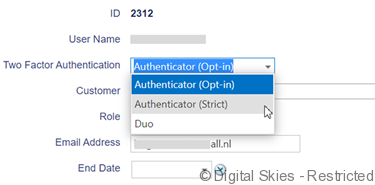
There is no option to add Two-factor authentication for multiple users at the same time, however should a customer want to enable this for all users, we can assist with this as a one-off service.
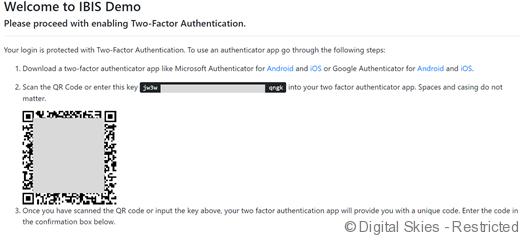
Using two factor authentication for the first time (Authenticator, strict)
The first time the user logs in, they will be presented with a QR code / number sequence to enter into their authenticator app.
Using two factor authentication for the first time (Authenticator, opt-in)
The user can set this up on their own username. In order to access this, the user clicks their username in the top right corner of the IBIS screen.
Next to the existing option to change their password, they now have the option to add two-factor authentication.
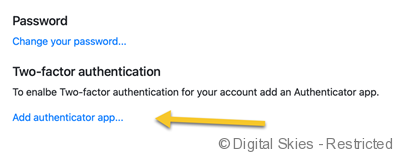
The process is then the same as for the strict version of Two-factor authentication.
Using Authenticator to log in
After the set-up, the user will log in with username and password and is then prompted for a 6 digit code:
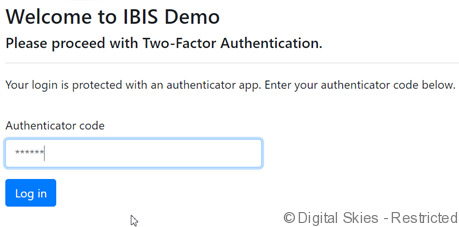
When the 6 digit code is entered correctly, IBIS will grant access.
Updating two-factor authentication (Authenticator opt-in only)
By going into the user details in the top-right corner of the IBIS screen, two-factor authentication settings are displayed and can be updated by the user themselves.