
Starlink Service Plans
A Starlink Service Plan needs to exist to base the Price Plan upon. To set up Starlink products, navigate to:
Tools -> Reference Tables -> Starlink Products

The button [Retrieve Missing Products From Starlink] will update the table with any new service plans. The Starlink Products table will have the ProductID, Starlink Product Code, Allowance and Provisioning Account columns populated.
Edit rows using the icon

In order to make use of a Starlink Product, add the following:
- Vendor Rate Plan Code is the reference that appears in the drop down in the Price Plan screen.
- Capacity Value is the minimum capacity required to activate a terminal on this Starlink Product. IBIS will validate that there is sufficient capacity available during activation based upon this figure and the available capacity at the site.
- Dual Antenna Capacity indicates whether dual antennas can be activated on this Starlink Product.
- Optionally add a Product Type.
IBIS Price Plans
IBIS allows you to create your own Price Plans for your customers, linked to a Starlink Service Plan. You can define the behaviour of subscriptions to the Price Plans including renewal period, bundled allowances, subscription fees, activation fees & early termination fees. Any traffic generated is rated against the Price Plan using its pricing rules for the relevant service variant.
Refer to Create Price Plans for instructions of creating price plans in IBIS.
Product: Starlink
Vendor Rateplan: Choose a Starlink Service Plan
Pro-Rata
IBIS supports starlink pro-rating logic by enabling setting inv_EnableStarlinkSpecificProRating.
The Price Plans need to have pro-rating enabled on subscription start, and disabled on suscription end.
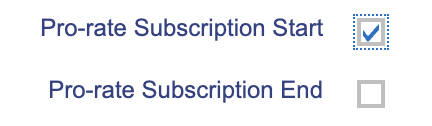
This causes IBIS to prorate the start of a subscription fee, but not the allowance. In the case of a mid-month upgrade, it causes the traffic at the beginning of the month to be billed on the original subscription, and consuming allowance from the new subscription.
Pricing Rules
Define a pricing rule for each Service Variant, eg. MOBILE_UNRESTRICTED, FIXED_RESTRICTED. (The dropdown list is populated from the data so you may need to build up some data before you can fully define your price plan.)
Change Price Plan
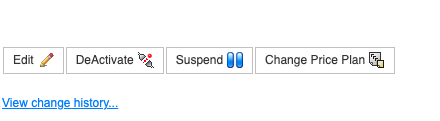
The Price Plan for an activated kit can be changed using the [Change Price Plan] button in the Card / Terminal Details screen.
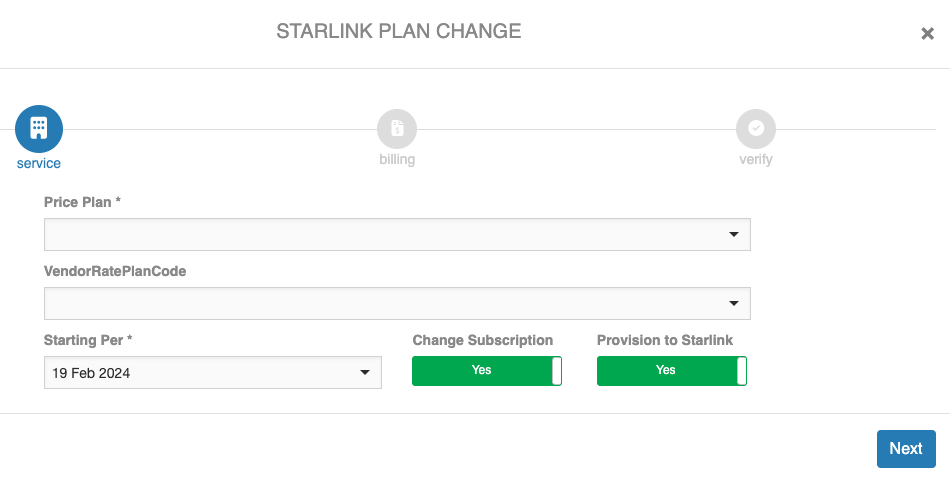
Chose the new Price Plan and Vendor Rate Plan in the wizard. Click [Next].
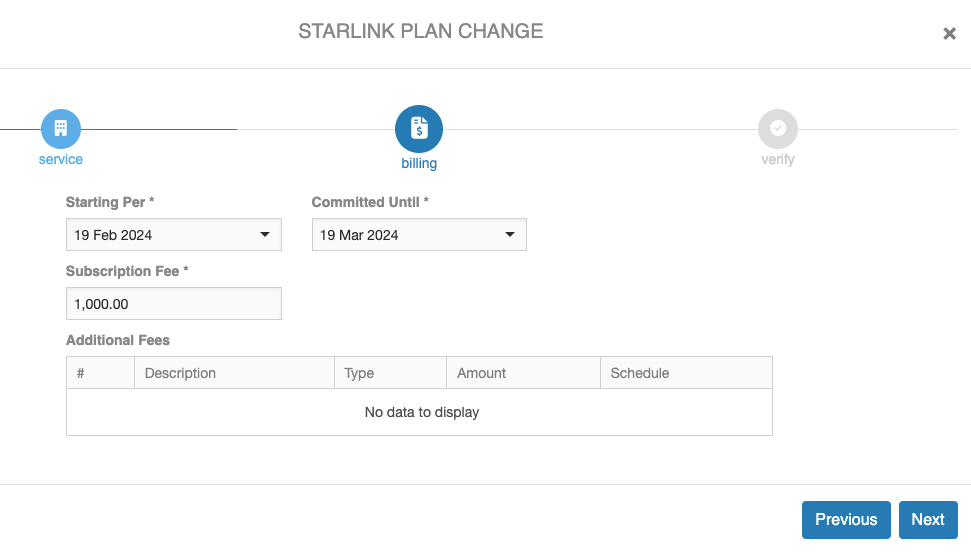
Select the Starting Per and Committed Until dates as required. Administrators may update the Subscription Fee if necessary. Click [Next].
Review the summary and click [Submit].
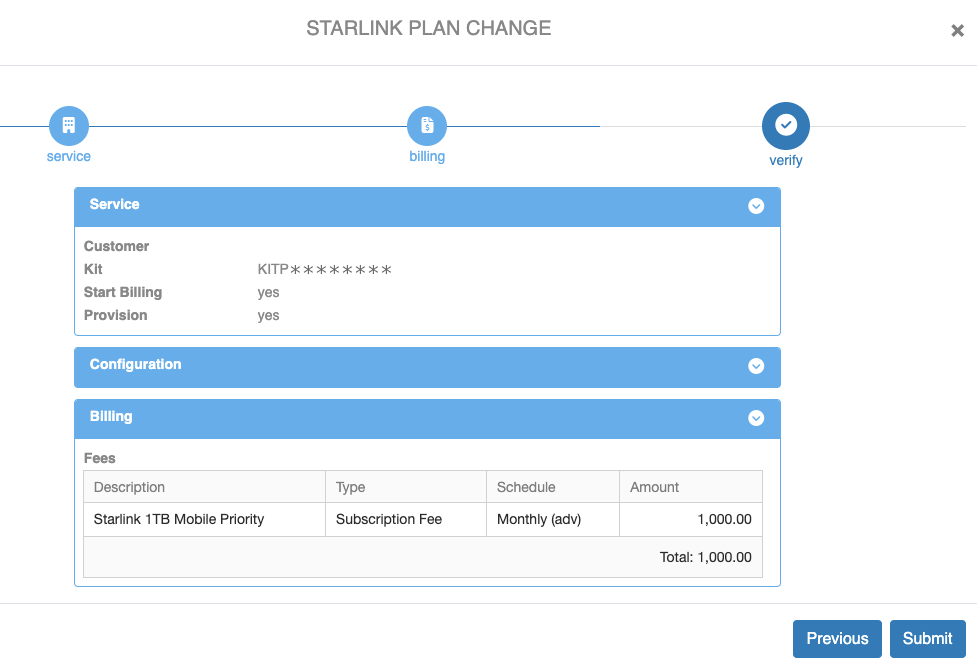
In order to ensure that advance plan changes are processed prior to the next period the setting prov_Starlink_AdvancePlanChangeMinutes is provided to ensure that the change is executed a little before midnight. By default, these operations happen one hour before midnight.
Starlink Data Pooling
Starlink pool plans allow data to be bought in bulk as a pool and sold on as pooled subscriptions or as individual subscriptions. Starlink will provide a different provisioning account for pool plans.
Selling pooled data as subscriptions that can pool their allowances
Create a new price plan and select the Dynamic Pool price plan model.
Enter the subscription details as usual.
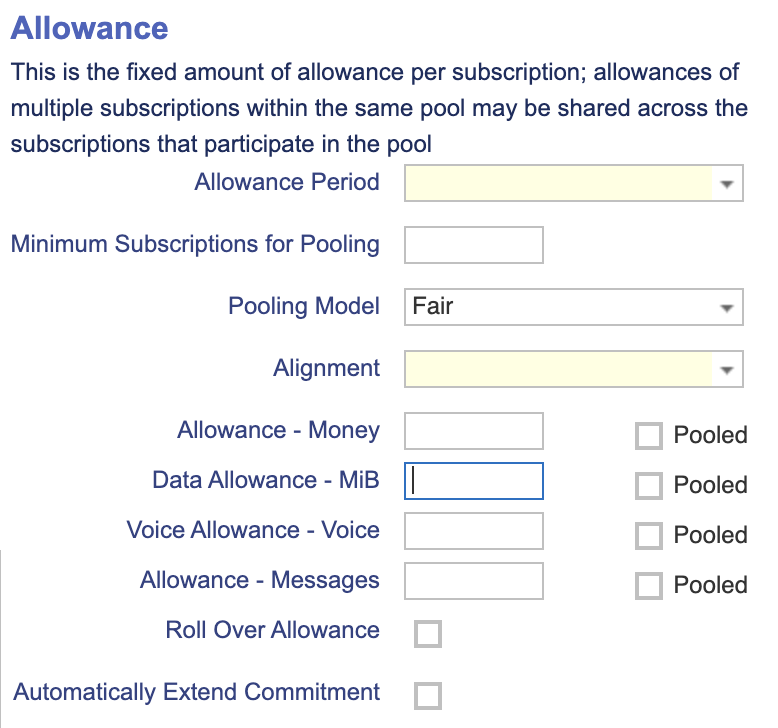
In the Allowance section choose the Allowance Period. If there are a minimum number of subscriptions needed before pooling will be allowed enter this threshold in the Minimum Subscriptions for Pooling field.
Choose the Pooling Model:
- First Come, First Served: This will allow each terminal to consume freely from the pool until the pool allowance is exhausted. After that, any terminal in the pool that consumes data will do so out of bundle, regardless of how much data it has consumed up to that time.
- Fair: This will allow each terminal to consume its own allowance. However, at the end of the month, any remaining allowance will be used to offset out of bundle consumption by other pooled terminals during the month.
Enter the data allowance (this is the allowance per subscription per allowance period) and tick Pooled.
Selling pooled data as individual subscriptions
Create a new price plan and select the Single SIM Subscription price plan model.
Enter the subscription details as usual.
A standard Starlink subscription on a Priority plan, once the allowance has been consumed, will revert to restricted data on land. Maritime plans will not be able to use data at sea, only near land. To make the individual subscriptions based upon pooled data behave in the same way, a traffic monitor can be set up to opt-out when the allowance bundle is empty. At the beginning of the following month, the terminal will automatically be opted-in and will begin to consume its new data allowance.
NOTE: The automatic opt-in will occur whether the terminal was previously opted-out manually or automatically (via a traffic monitor).
Monitoring Pool Consumption
Pooled data may be consumed across different price plans and different customers. Therefore, traffic monitors will not be able to measure the total consumption. To measure the total consumption of pooled data across all devices, use the Traffic Pivot Report. Navigate to
Reports -> Traffic -> Traffic Pivot Report
Click on the [Fields…] button to edit the pivot report. Add the VendorPlan field to the Row Area from the Subscription folder on the left. Move Product to the Filter Area and click [Update].
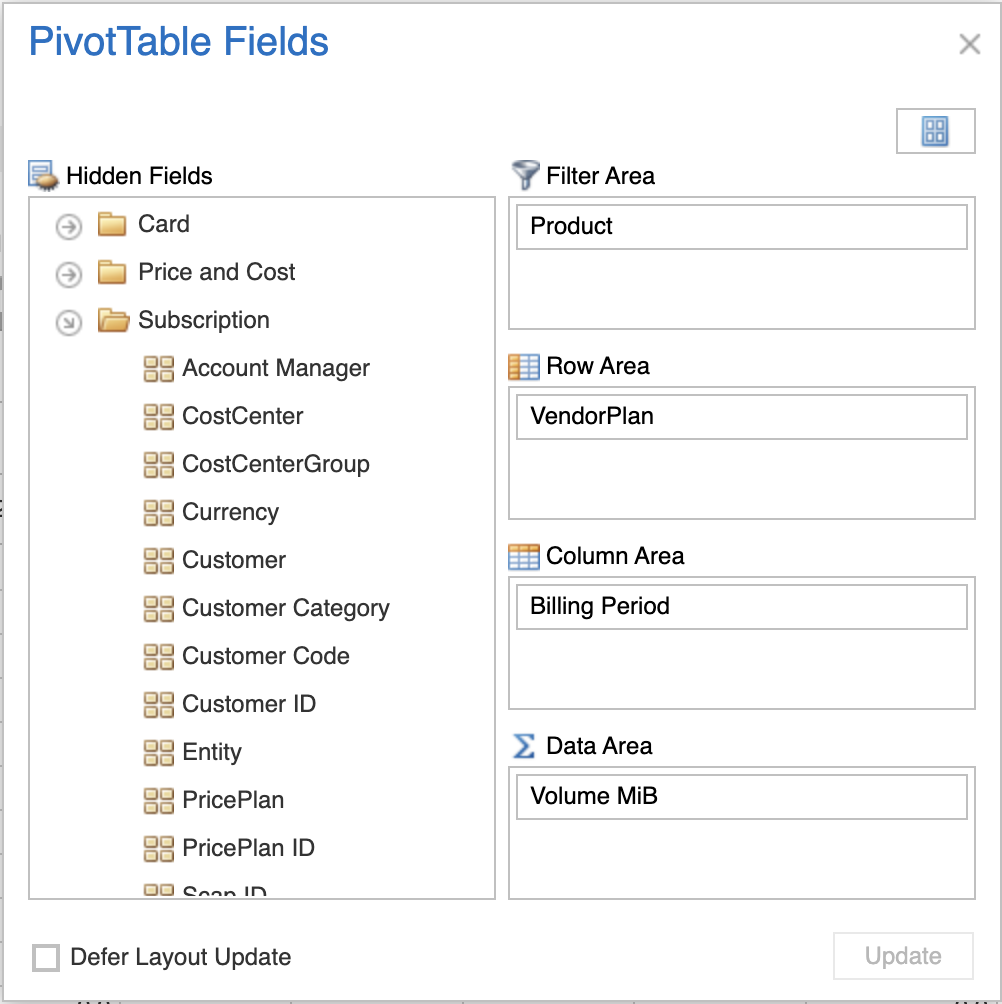
Now filter the Product by Starlink. Optionally, filter the VendorPlan to the pooled data product(s) you want to measure.
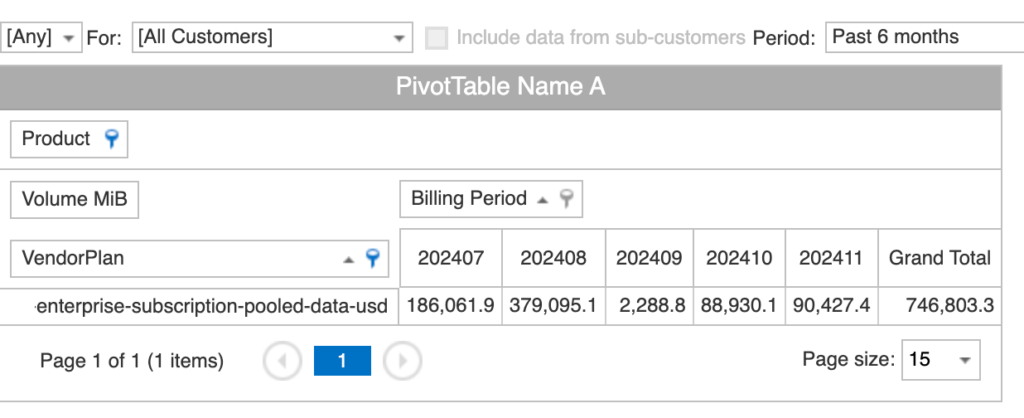
Click on the [Presets…] button so save this pivot configuration for later use.