
There are several options to change price plans:
- Adjust the individual prices
- Discount a percentage from a list price
- Add a percentage to a cost price
The different options are explained below. For all price plan changes, in the menu, go to [manage priceplans]. In the screen with the overview of all priceplans, select the one you would like to change.
Adjust the individual prices
This is similar to creating the price plan. Update any required fields individually and save the price plan.
IMPORTANT NOTES:
Caution for CHANGING ALLOWANCE: When the allowance properties of an existing price plan is changed, this does NOT change allowances of existing subscriptions. An allowance change will take affect in a new allowance period (for a monthly allowance change, it will be the following month). If the subscription was started in the same billing period as the price plan needed to be adjusted, delete the subscription (billing only) and start a new one.
Caution for CHANGING SUBSCRIPTION FEE: when a subscription fee on a existing price plan is changed, the change will only take affect if Fee Follows Price Plan is selected. This needs to be selected and saved to the price plan before the subscription fee amount is changed.
Caution for CHANGING PRICING RULES: when a pricing needs to be changed on a price plan with existing subscriptions, it is advised to end date the pricing rule and start a new one (per date).
Discount a percentage from a list price
The first step is to create a list price price plan. This price plan should not be made available to customers and should contain the list pricing.
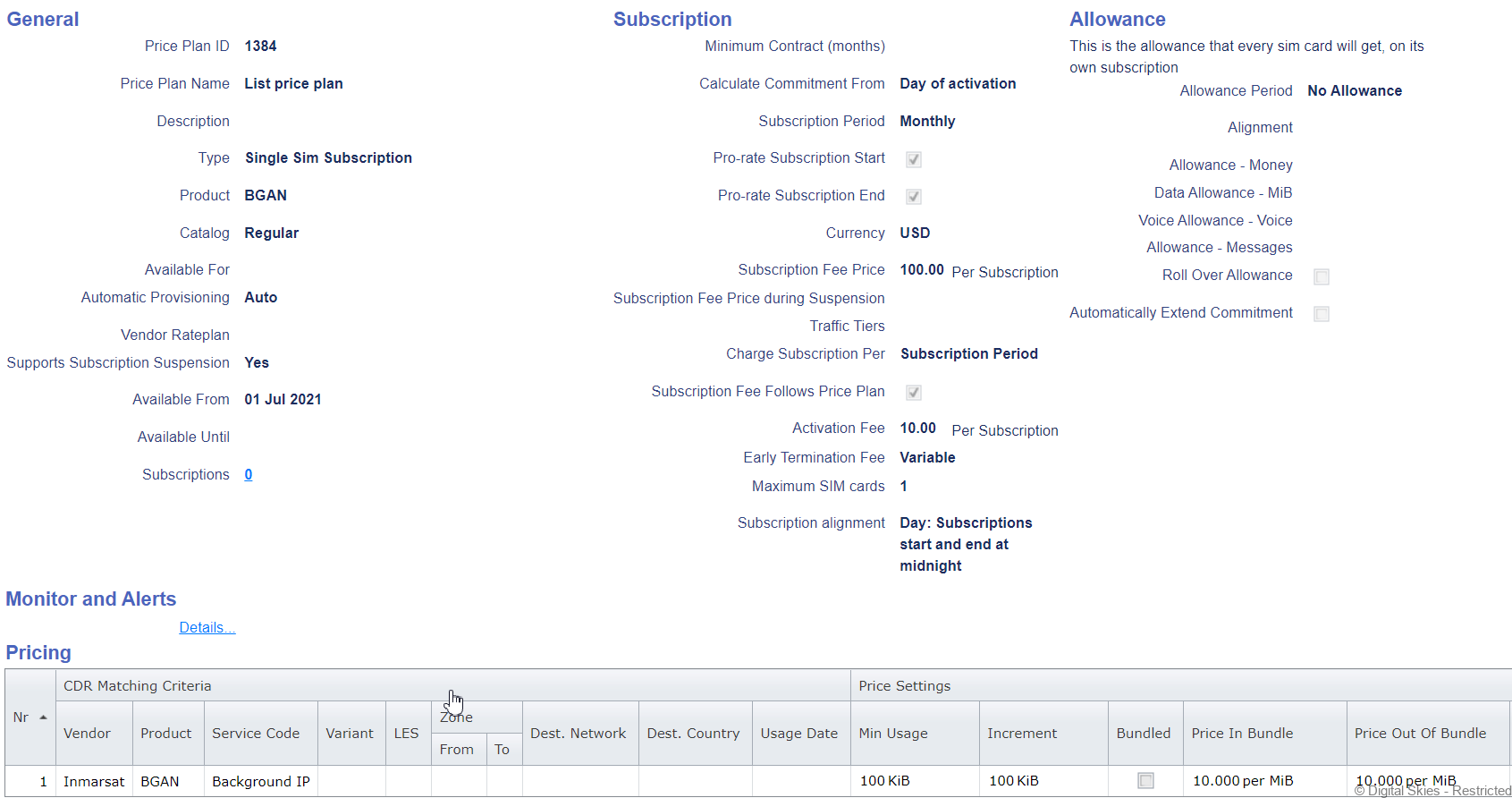
In this example list price plan, the subscription fee is 100, the activation fee 10, and the price per MB is 10 as well. Save this list price.
It is now possible to easily create new price plans per customer.
Open the list price price plan and on the bottom of the page, select [copy] and give the price plan a new name. Then, at the bottom of the page, select [adjust prices]
A new screen appears with the different options to adjust the prices
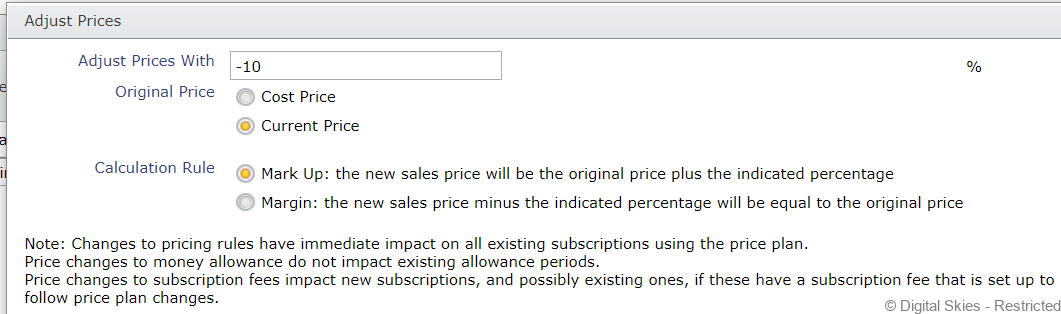
For a discount on the list price, select the [current price] option and the [mark up] option. This will result in a 10% discount on the current (list) price. Ensure the plan is available to the customer(s) it is intended for. Click OK. The prices will be updated live on the screen. Check if the prices are correct and save the new price plan.
The new price plan (called Bronze) has a 10% discount:
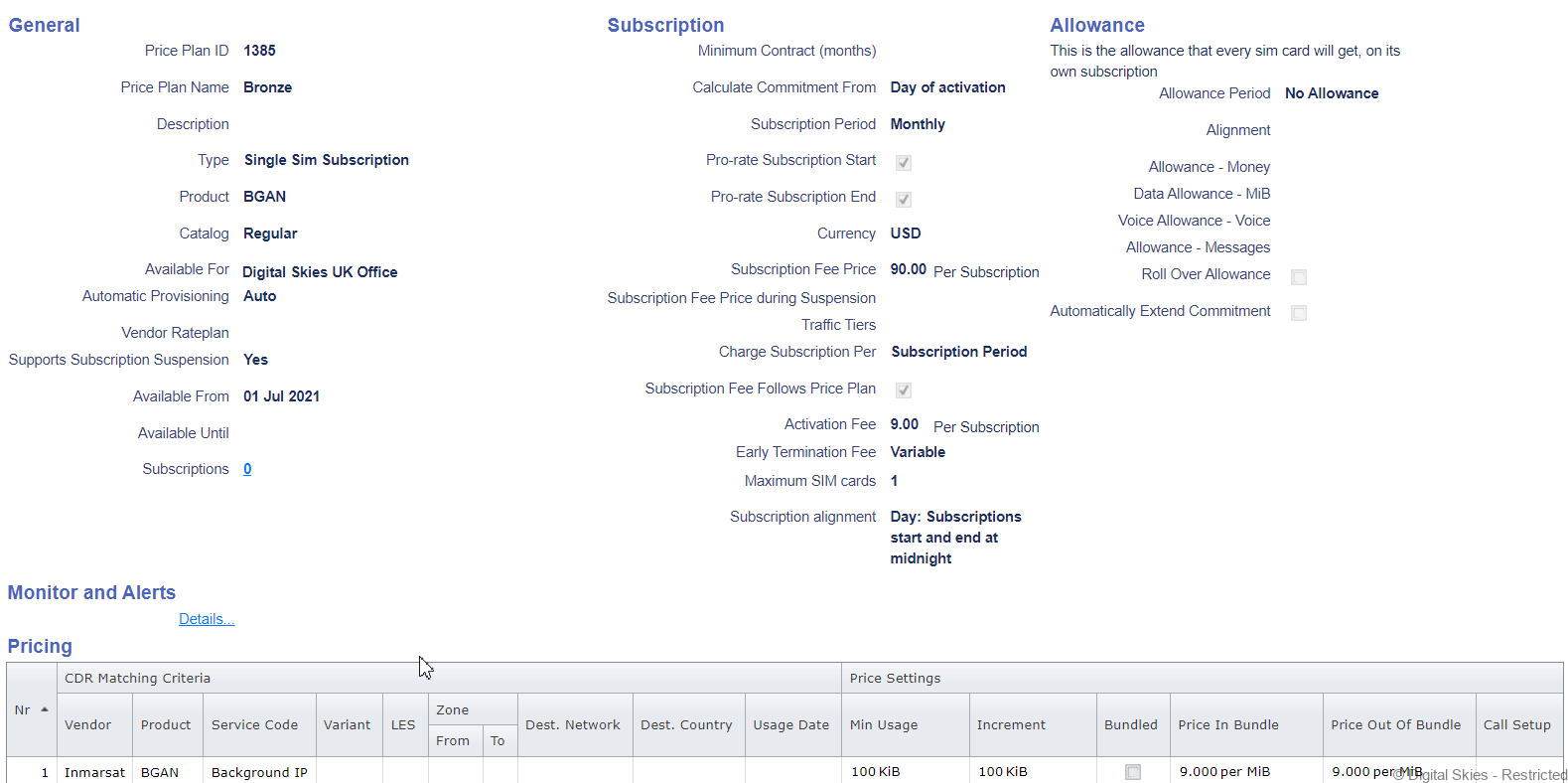
In this way, other price plans can be created with other discount percentages (example: Bronze 10% discount, Silver 15% discount, Gold 20% discount)
Add a percentage to a cost price or wholesale price
There are two ways to add cost price to a price plan:
- Add the cost price in the applicable fields of the price plan.
- Create a cost price price plan as a dummy plan.
In addition, there are two ways to add a percentage to the cost price:
- Add a mark up: This is adding a percentage to the cost price. Example: 100 USD cost price plus 10% mark up makes a new price of 110 USD
- Add a margin: This is creating a margin on top of the cost price. Example: 100 USD cost price plus 10% margin makes a new price of 55,55 USD
Add the cost price in the applicable fields of the price plan (please note that this is a configurable option that has to be enabled in the Settings. Please contact Digital Skies Support if this is not visible.
