A site must be created to activate a Starlink kit. The site requires a latitude and longitude, which is usually derived from an address. Starlink uses the site to check capacity for Fixed plans. A site is also required for Mobile plans although capacity checks are not relevant.
If you activate a kit in the Starlink portal, a new site is created for each Service Line. IBIS provides more flexibility and allows:
- a new site for each asset
- or a site for each asset owning organization
- or a single site for everything
In IBIS you can:
- Create a new site
- Copy an existing site
- Synchronise a newly created site from the Starlink portal (this sync runs periodically in the background)
- Reuse an existing site for activating a terminal
- Check site capacity (relevant for fixed Service Plans only)
Create a new site
To create a new site, navigate to Customers –> Starlink Provisioning –> Sites,
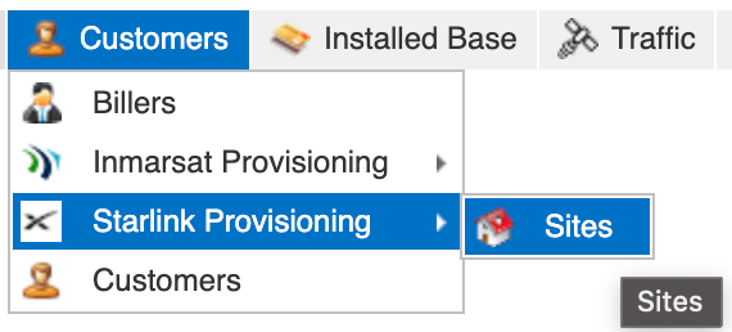
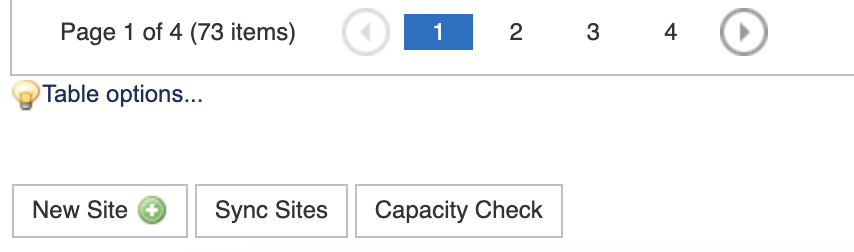
and click the [New Site] button at the bottom of the table.
Select the Customer and Provisioning Account.
Name the site. The site Name can be used to describe the site or to specify the use case for the site eg. vessel name, team name, location description.
Find address by clicking the [Find] button: Start typing the address (number, street and city) and it should be found.
NOTE: The address needs to be in the same region as the account. Starlink expect the reseller’s address to always be used.
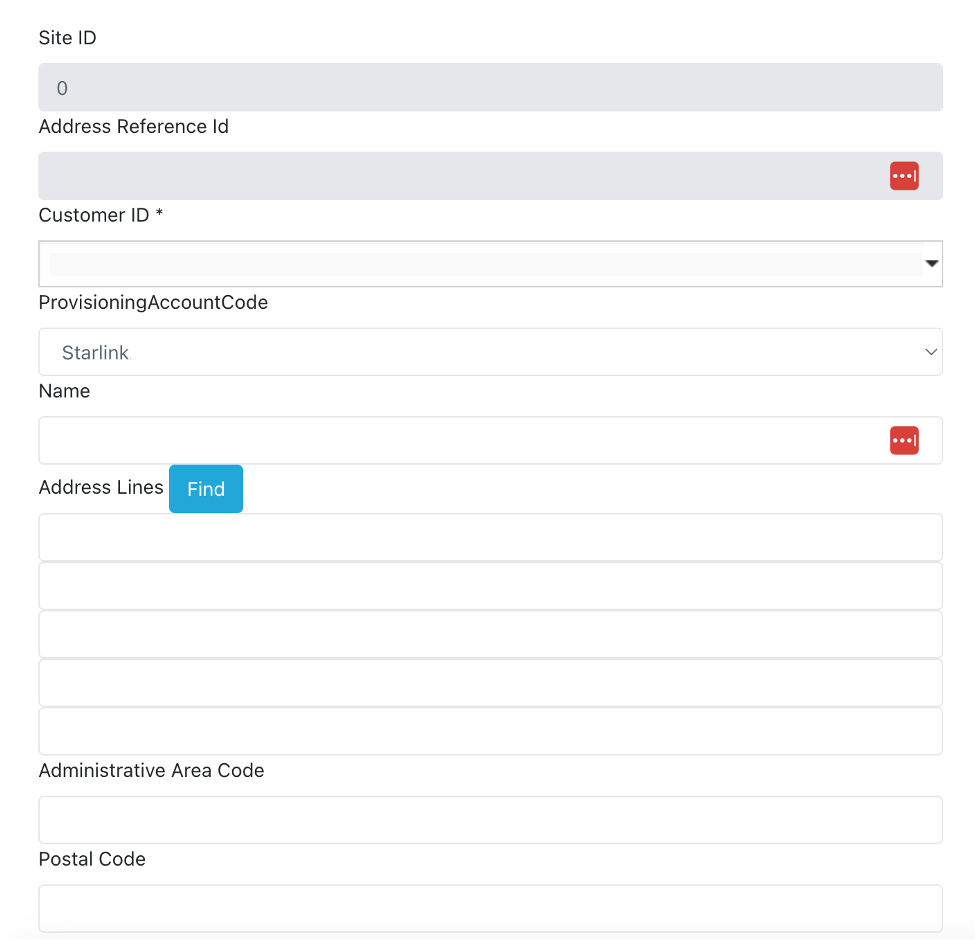
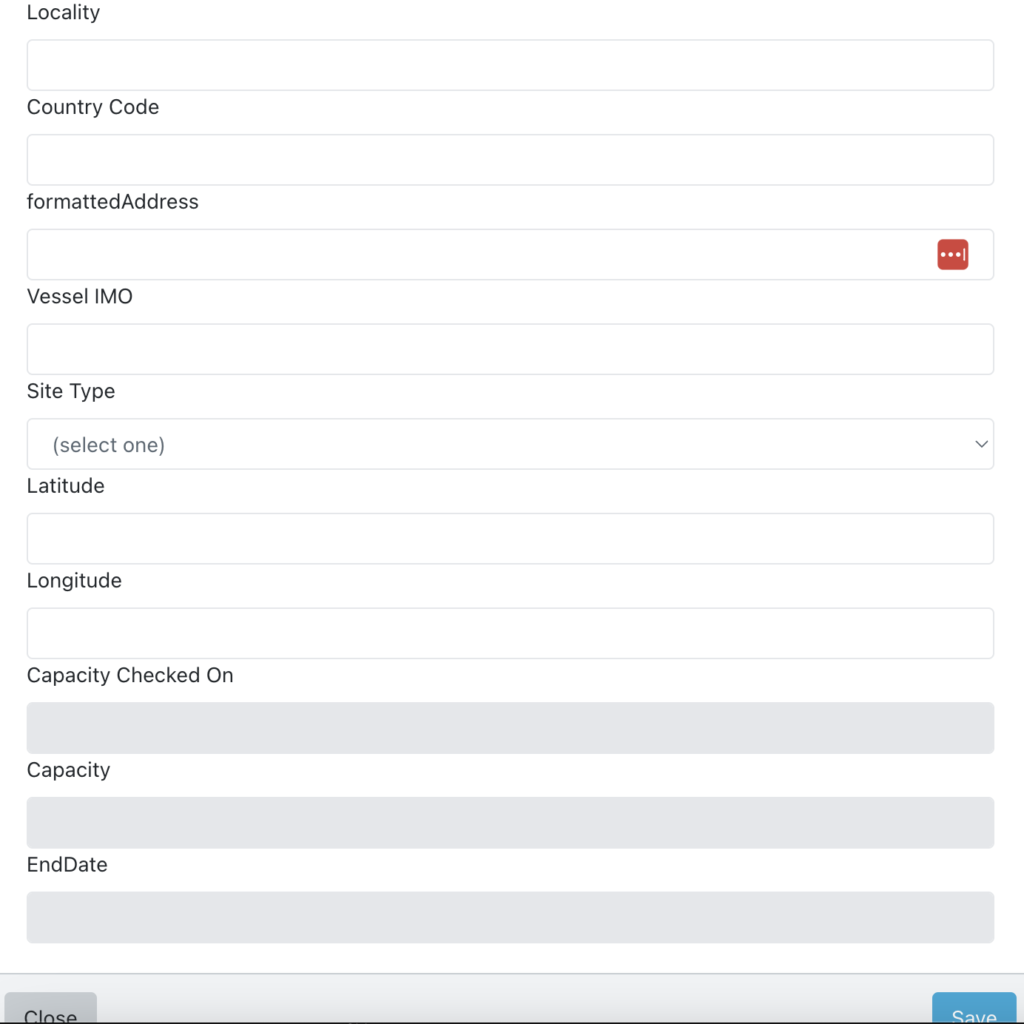
Optionally, enter other information as required, such as Vessel IMO or Site Type.
Click [Save] to create the site.
Copy an existing site
To copy a site from an existing site, navigate to Customers –> Starlink Provisioning –> Sites.
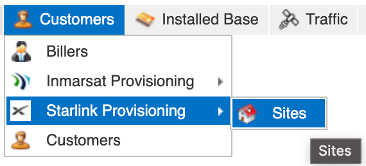
From the table, choose the site you wish to copy.

Click on [Copy] at the bottom of the screen.
Make changes as required and [Save] the new site.
Sychronise sites from the Starlink portal
Sites are periodically synchronised from the Starlink portal into IBIS. If the site was recently created in the portal, it may be necessary to manually synchronise the new site between the two systems.
Navigate to Customers –> Starlink Provisioning –> Sites.
At the bottom of the table, click on the [Sync Sites] button.
Synchronise parameters for a single site
From the sites table, choose the site for which you wish to update the parameters from the Starlink Portal.
At the bottom of the form, click on the [Synch] button.
Check the capacity of a site
In order to activate a terminal on a guaranteed service fixed Service Plan there must be available capacity at the location. Capacity can be checked for a site by clicking on the [Capacity Check] button at the bottom of the site details form.
The Capacity Checked On date/time and Capacity figure fields are refreshed in the sites details form.

If the site capacity is greater than the capacity required by the Service Plan then additional terminals can be activated with a guaranteed service. Otherwise, a best efforts service may be offered.
Check capacity without creating a site
It is possible to check the capacity of a location before a site is created.
Navigate to Customers –> Starlink Provisioning –> Sites.
At the bottom of the table, click on the [Capacity Check] button.
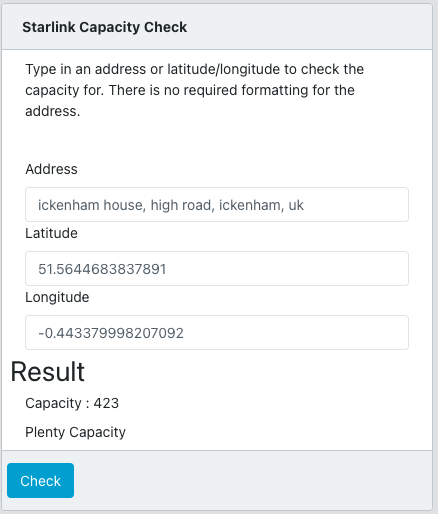
Enter the address or latitude/longitude and click the [Check] button.