
Prerequisites:
- IP Log reports for IOP and Iridium Certus are available for Digital Skies DPaaS/SPaaS customers
- Requests for access to this tool should be submitted to your Digital Skies account manager
- Access will be granted to the SP IBIS administrator, who can create further users for the SP
Generating an IP Log Report
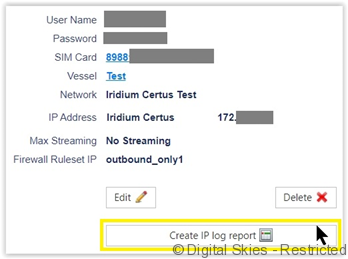
Navigate to the SIM Card / Terminal details page for the desired ICCID and select the User Profile of the SIM card via the User Name.

Click on the “Create IP log report” on the user profile page.
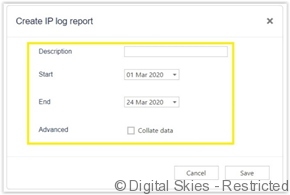
The below pop-up box will appear. Proceed with entering the date period required for the report. Reports can be generated from 90 days prior the date you are requesting them and for a maximum period of 30 days.
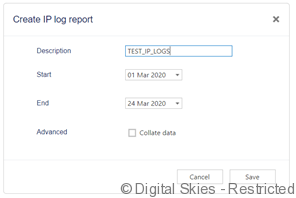
Enter a report description and click Save.
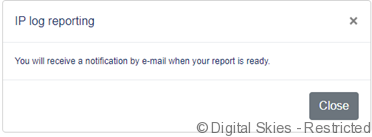
The below pop-up box will appear with a notification advising you will be emailed once the report is ready for download. Please note, this email address is linked to the IBIS user account who requested the report.
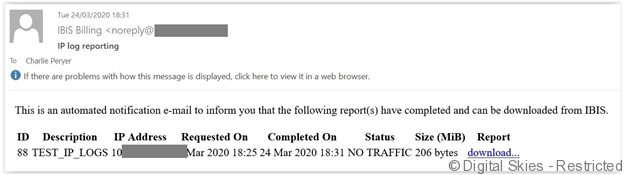
Once the email is received, it will contain links to automatically download the reports. The file format is always zipped to CSV. The user will need to extract the logs from the zipped file once downloaded.
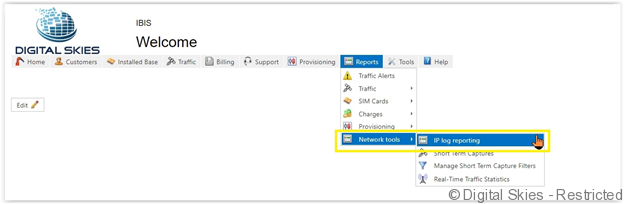
Reports can also be requested or downloaded from Reports > Network tools > IP log reporting
Click on the file size to download the report

Supporting Articles
Please refer to the service sheet “IP logs service description” for a full service description.