[Data sessions] and [Terminals browse] show data in the report view. In this guide, we will show the general navigation of reports in RTM.
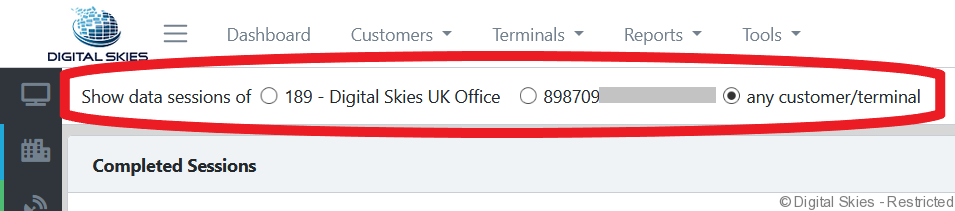
Switching between current customer, current terminal or any customer/terminal.
Quickly switch between customer levels under the header.
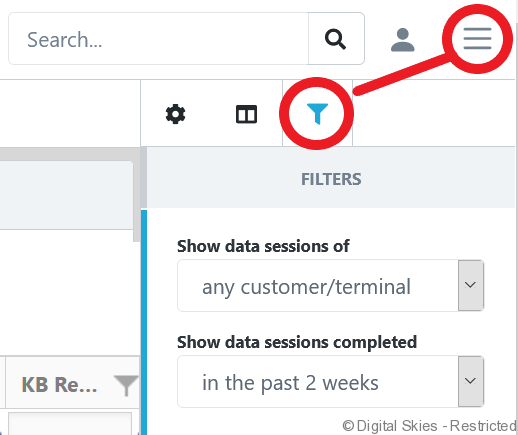
Alternatively, use the filter button inside the hamburger menu.
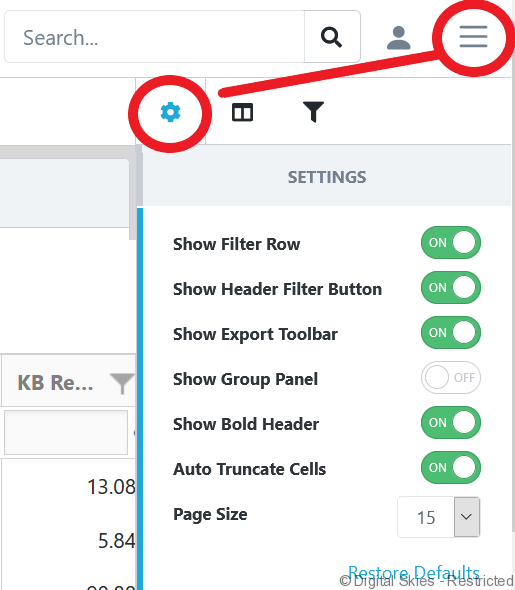
Changing the report settings, add or remove filters and increase page size.
Click on the Hamburger menu, then settings.
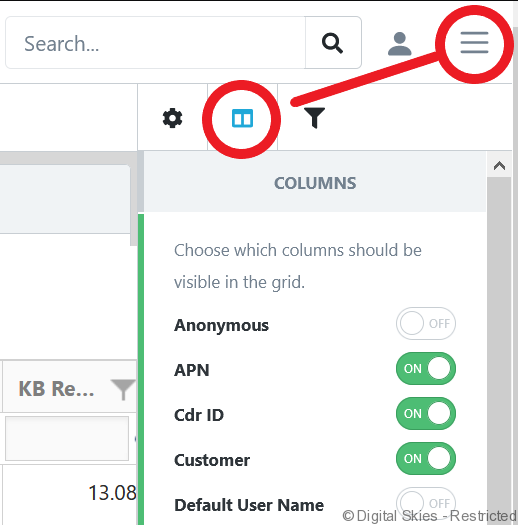
Choosing which columns are visible in the grid.
Select the columns in the Hamburger menu. Smaller reports may include the selectable columns in the settings tab.
Filter and sort data in the report.
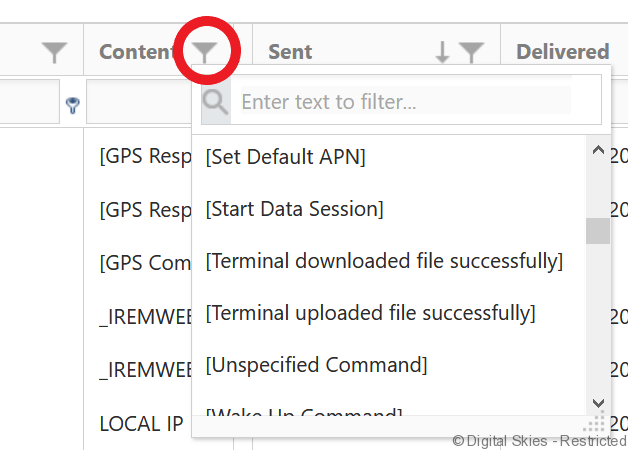
Each report column has filter and sort options, filter data via the filter key next to the header.
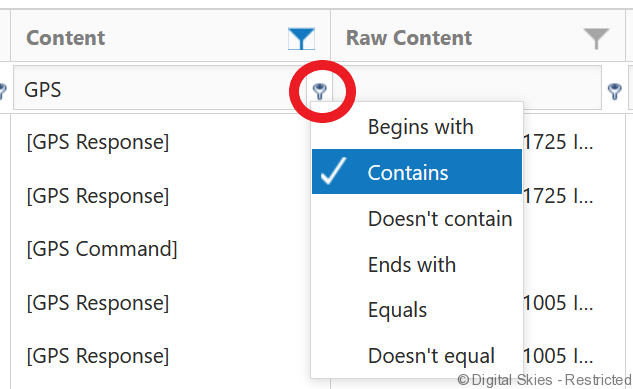
Users can sort and manipulate data in the field underneath the column header.
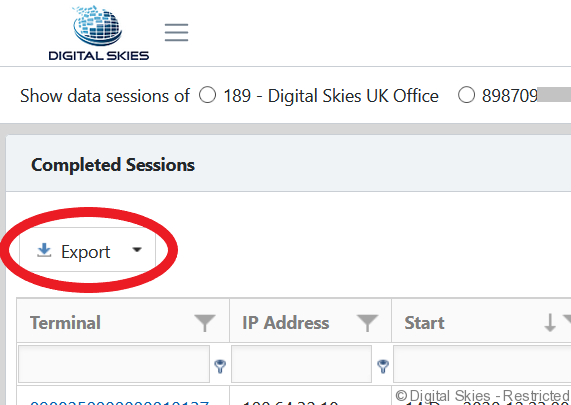
Export the data in the report.
Each table has an export button into various formats such as Excel/CSV. The report will be exported with any existing filters applied.