
Terminal
View and edit settings and descriptions listed against the terminal.
Set session alerts against the specific terminal. Additional alerts can be set on multiple terminals in system monitors. See System monitors
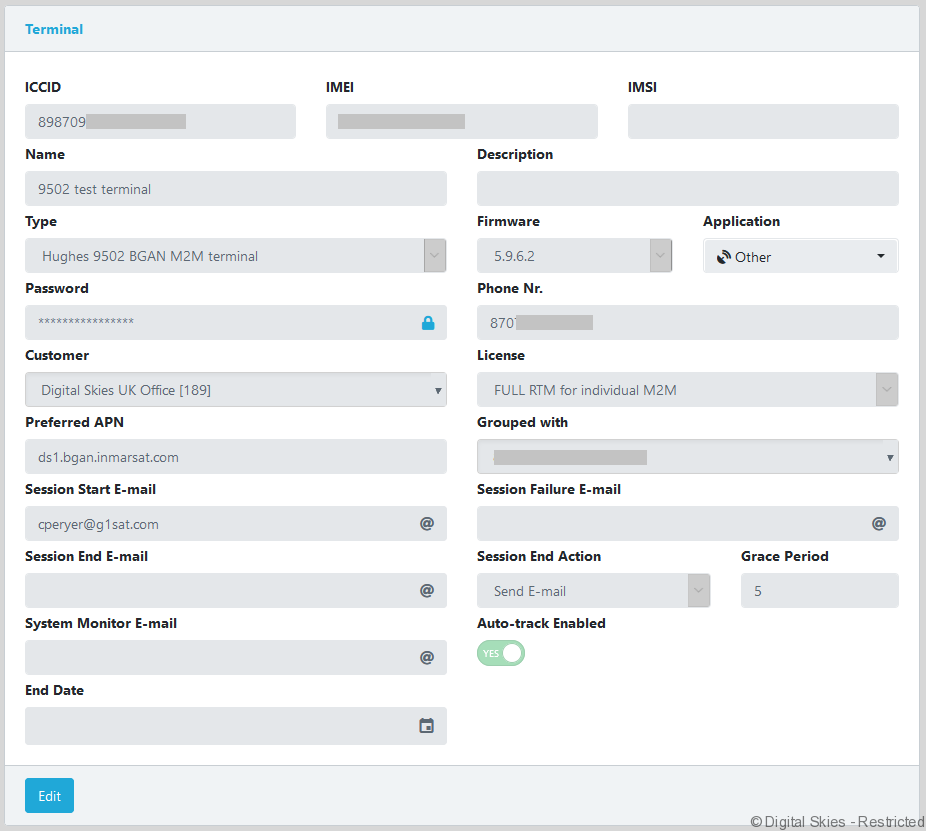
Use the [Edit] button to change any settings.
*Note the password field can only be changed when not editing the terminal widget. To edit a password click the blue padlock before you edit the terminal widget. Users can also edit the password in the action menu.
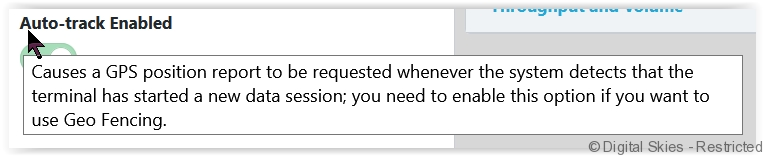
Tooltips are visible when you hover over the title.
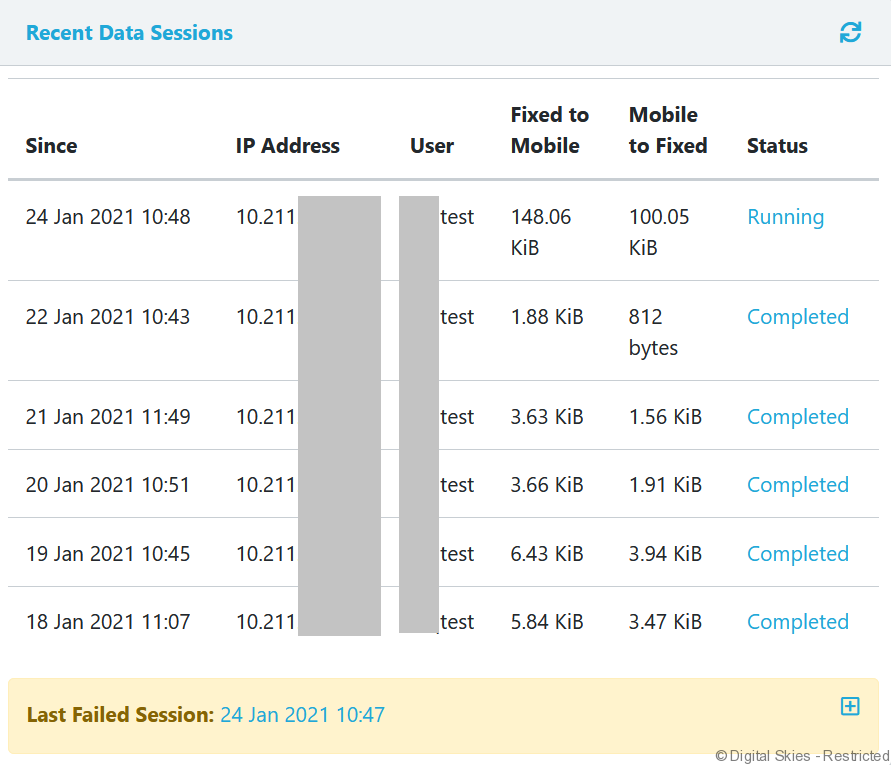
Recent Data Sessions
View the last 5 sessions reported by the terminal.
Click on the blue completed or running link, under status, to show the full report of completed or running sessions.
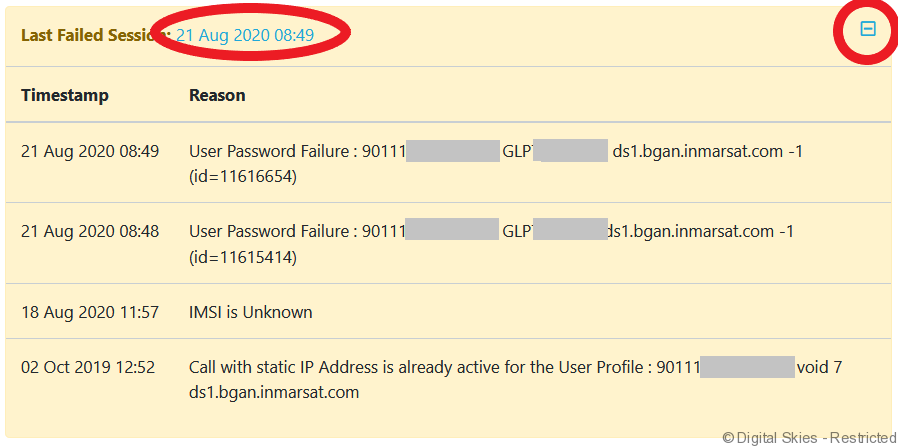
Click the date hyperlink to view the report on all failed sessions. Expand to show the last five sessions via the plus sign.
Control messages
View recent control messages sent to and from the terminal.
See Terminal actions for more information on commands.
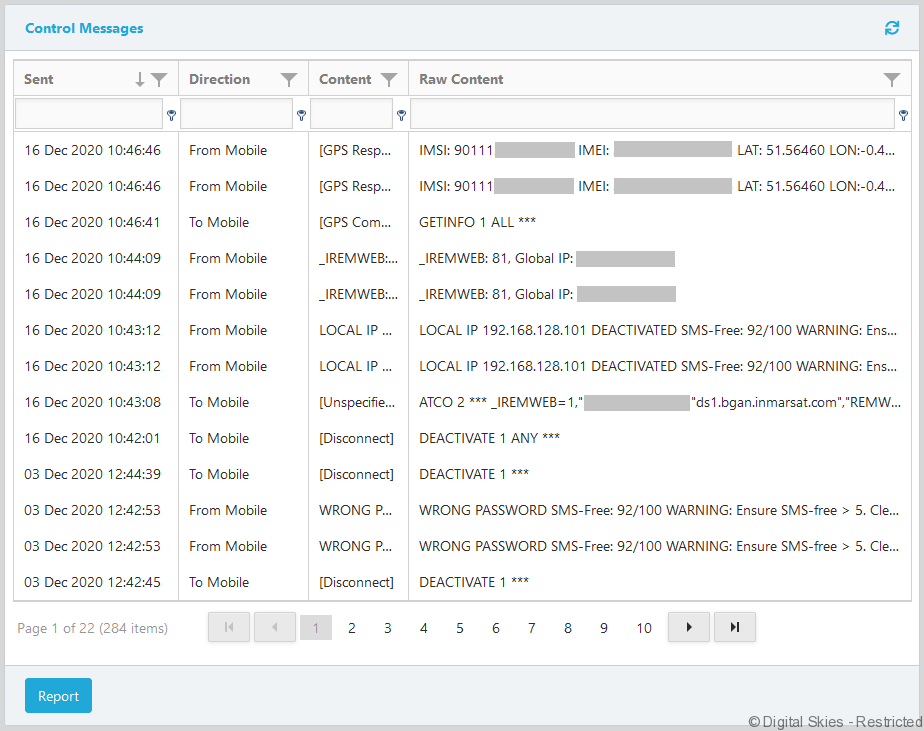
Click [Report] for a full report on control messages.
Status Reported By Terminal
Show reported status based on the last status update (GetInfo) received from the terminal.
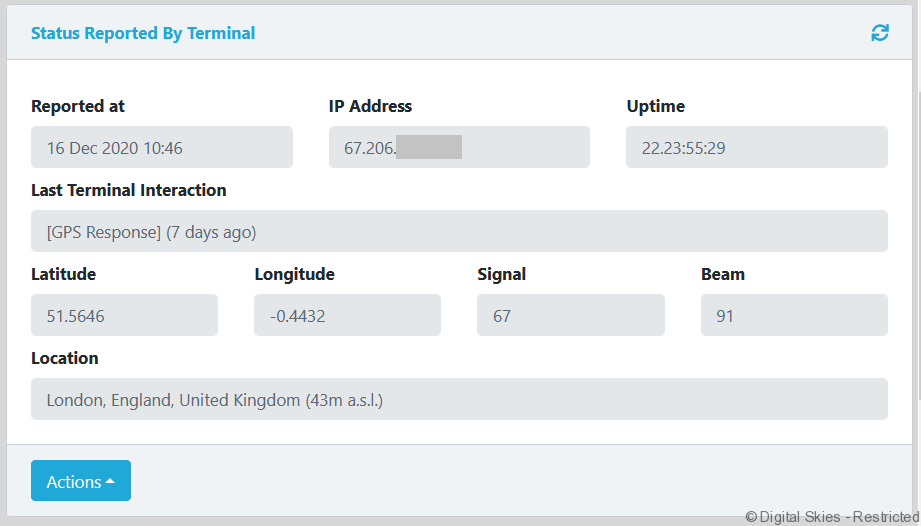
Request a new status report, show on map or retrieve weather report in the [Actions] button.
Geo-Fence
If turned on, Geo-Fence will send an alert if a terminal has moved away from its home location.
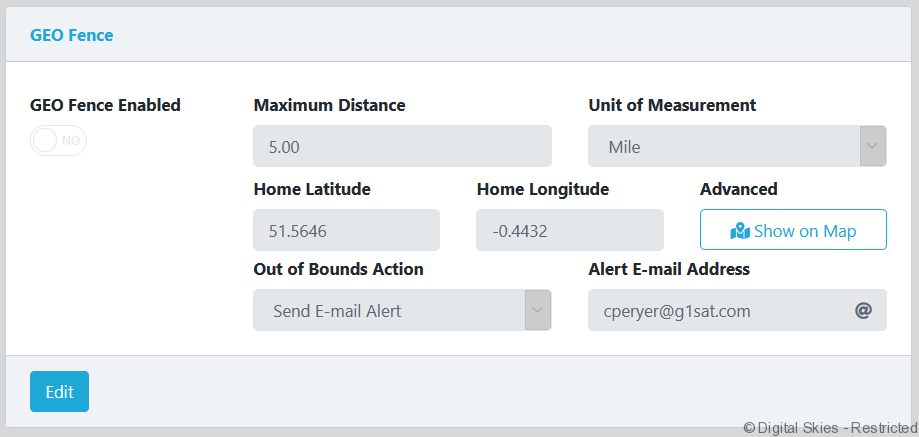
Geo-Fencing is based on GPS coordinates from status updates.
For closer monitoring of the location of the terminal, you can use Auto-track in the terminal widget to automatically request a status update at the start of a new session.
Throughput and volume
View throughput and volume recorded by the PoP.
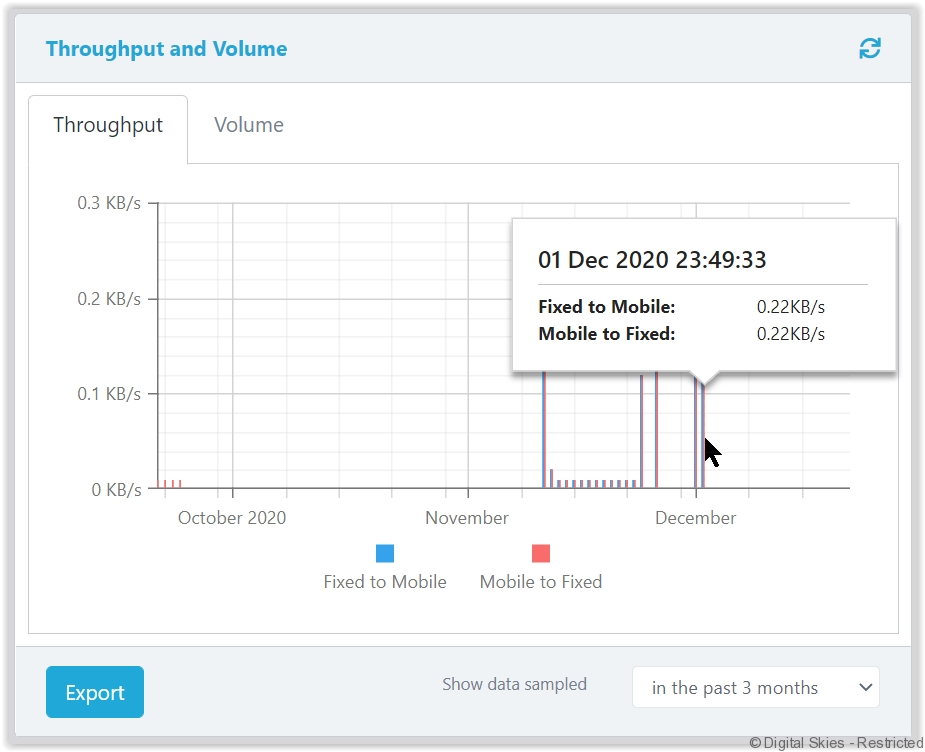
Filter by date range and use the [Export] button to download the chart as an image.