
There are three ways to view traffic monitor reports (in addition to the information on the subscription page and the SIM card / terminal details page)
- Traffic monitors
- Traffic monitors pivot
- Additional column in SIM card / Terminal overview
Traffic monitors report
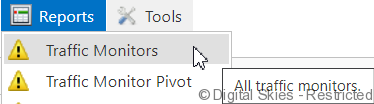
This report, and the traffic monitors pivot, is available under the [Reports] menu header.
The traffic report shows all relevant details of the monitors. Please note that any customer detail colums are not available in this screenshot but are usually visible as well.

- Monitor traffic of – Shows whether the monitor is set up on a subscription or on a SIM card level
- Trigger action when – Describes the trigger action, for example the amount of traffic consumed on a single day
- Action – When the trigger is reached, the action can be to send an alert, suspend one or more devices, or apply a data suspend only
- Auto resume – indicates whether after the trigger has generated a suspend, that suspend is lifted at the beginning of a new period.
- Alert template refers to the email template that is sent when the alert is triggered.
Traffic monitors report pivot
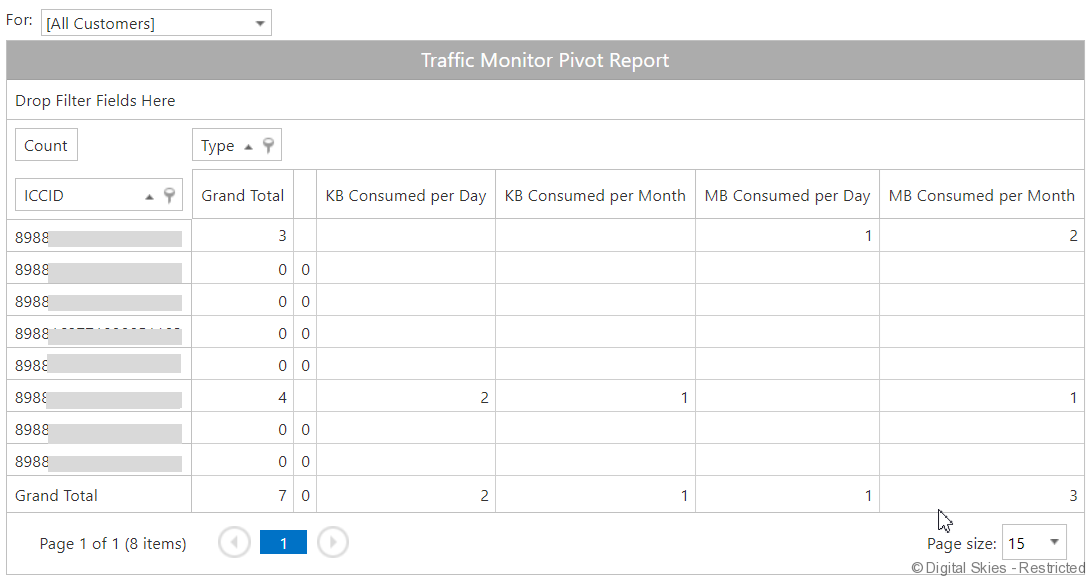
This report allows the generation of a pivot report for all elements of the traffic monitors. An example report, listing the devices with the number of monitors on it, as well as the consumption of traffic against the monitors, is shown below.
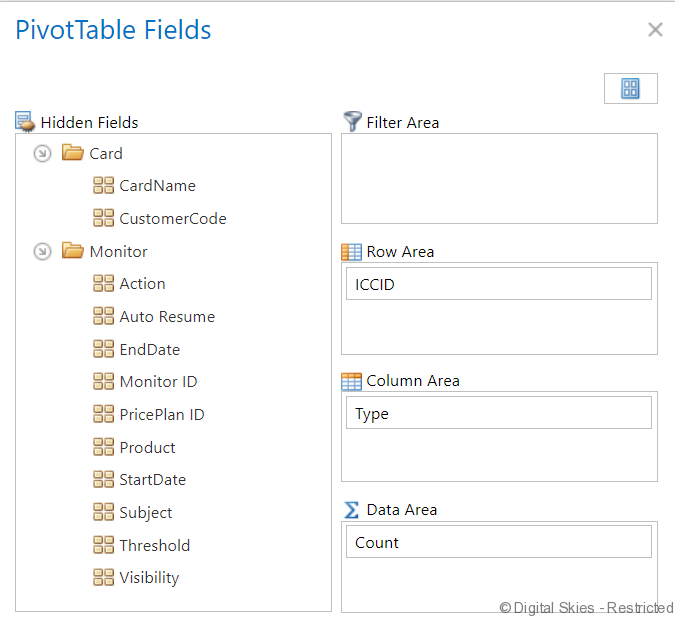
All monitoring values are available to create the pivot table from:
For more information on how to use pivot tables, please refer to the following page: Pivot table options
Viewing the number of traffic monitors on a device in the SIM card / Terminal overview
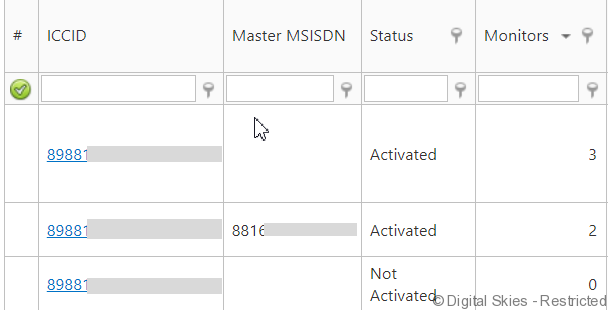
In the SIM Cards / Terminals overview it is possible to add a column with the number of traffic monitors on a device. This can assist with checking if every device that has been activated has a traffic monitor set up.
In the [Table options] on the bottom of the page, the check box for Monitors can be ticked. Once this is confirmed with [apply], this will add a column [Monitors] to the right side of the columns of the installed base overview.
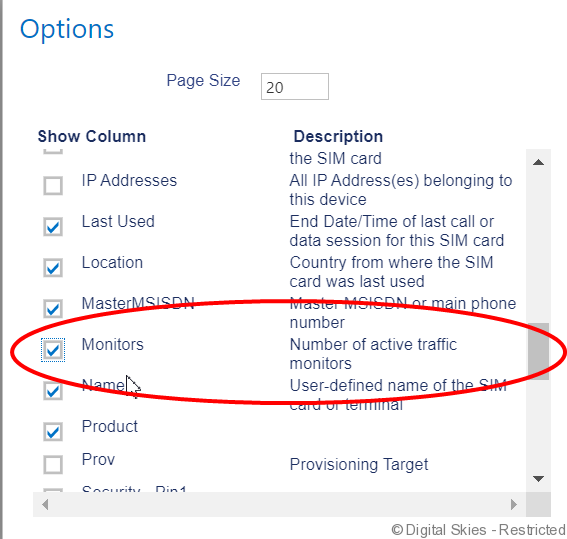
The column can be dragged from the right to the position where it is considered most practical.
A SIM card / terminal can have more than one monitor on it, for details please refer to the page on creating and editing traffic monitors.