
Template based provisioning is used to simplify the provisioning process as it will use a pre-defined provisioning configuration that can be applicable to all devices or a sub-set of devices of a customer. The template can hold both SDP and POP provisioning parameters.
Activate multiple SIM in bulk – When a customer requests activation of multiple devices at once, this can be processed via batch provisioning in the template provisioning wizard.
For simple provisioning orders, like suspend and resume services, these can be executed in bulk via the bulk provisioning tool.
Creating a Provisioning Template
A Provisioning Template is created from a completed provisioning order. Go to menu tab Provisioning, sub menu Tasks. Look up the task that holds the provisioning order that will be used as the pattern for the template.
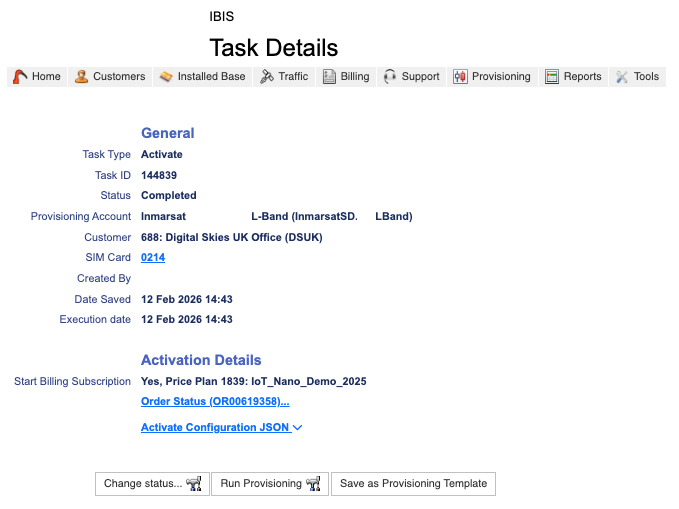
Then go to the following menu:

The Template will appear there with a generic name, only referring to Inmarsat SD activation. Select Edit to rename the template.


The template shows the reference to the price and the JSON script for SDP provisioning. Custom fields can be ignored as they are for external API user only.
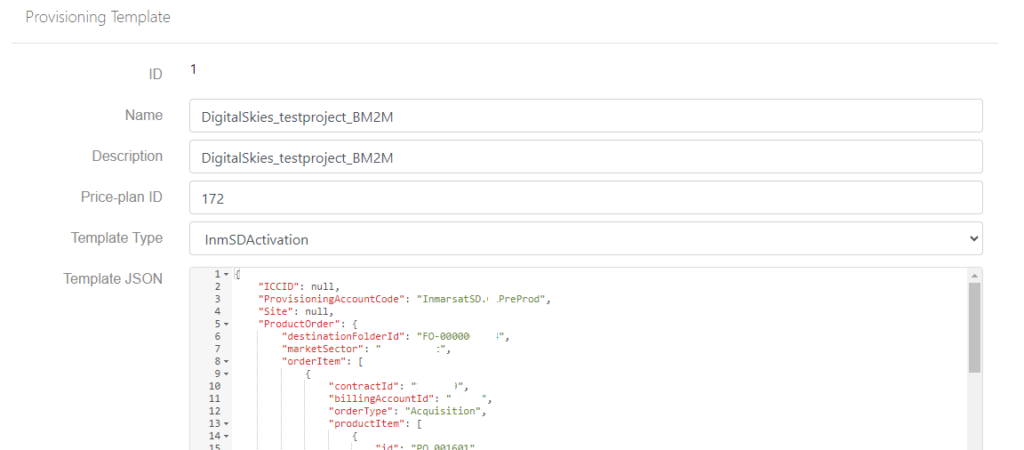
Ensure the template only contains information common to all activations for which it shall be used.
The Provisioning Template is now identified by its name and ready for use.

Template Based Provisioning
To start the provisioning, go to menu:

Please be advised that any user that has the permission Device_Activate, will also be able to use Template Base provisioning.
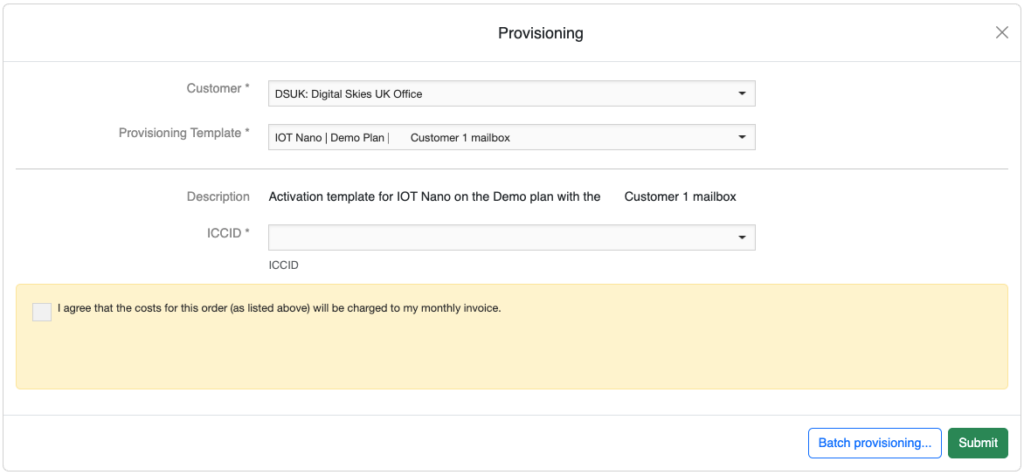
In the provisioning wizard, select customer and template and add the ICCID.
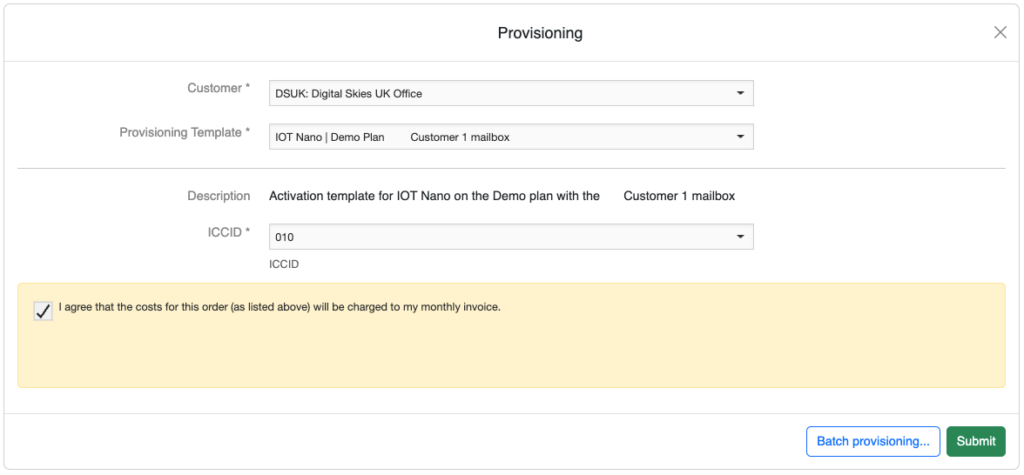
Then click [Submit], which will create a provisioning task and order to SDP.
Batch Provisioning – provisioning multiple devices at once
Please note that user needs to have the permission enabled: Provisioning_BatchProvisioning
First select the devices in the customer account:
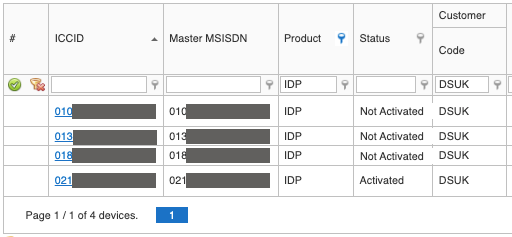
In Table Options, this data can be downloaded in Excel.
Navigate to Provisioning -> Template Based Provisioning -> Provisioning Wizard and click [Batch Provisioning]:
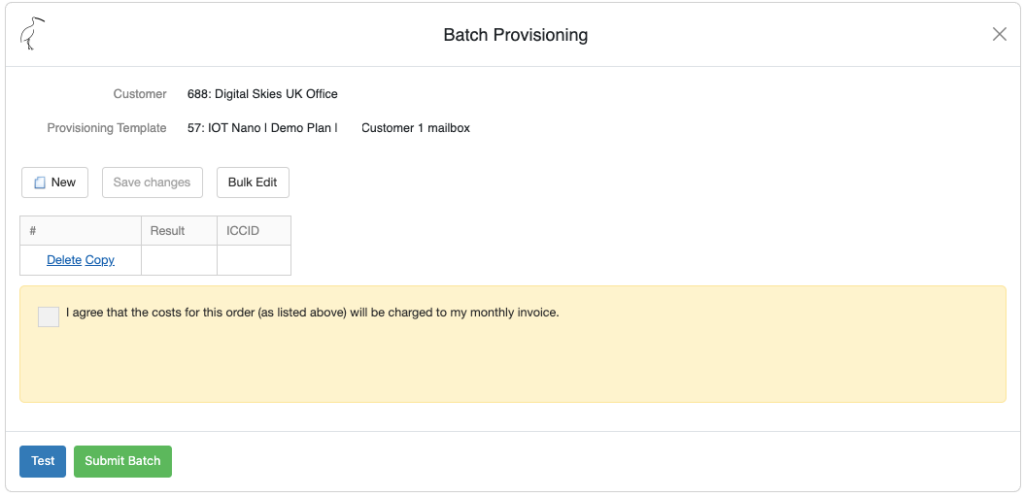
Use [Bulk Edit] and copy the ICCIDs from the excel:
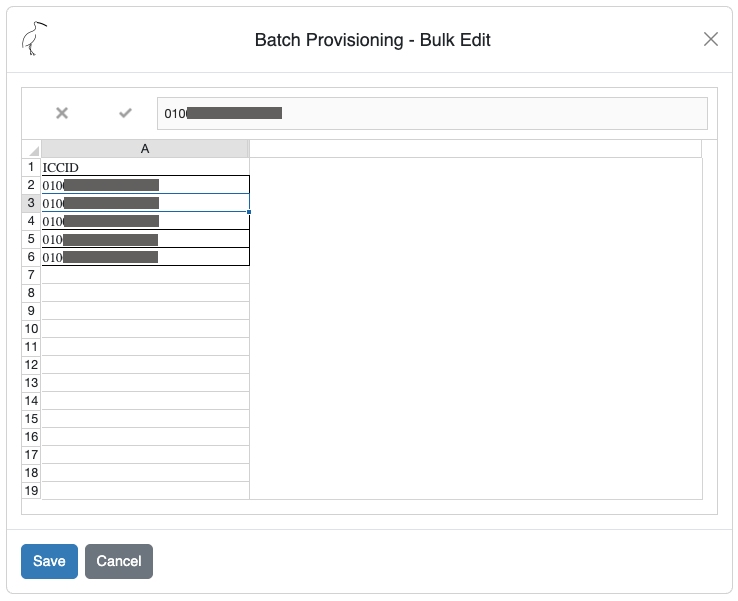
Click [Save].
Use [Test] to validate the data and if it passes click [Submit Batch]:
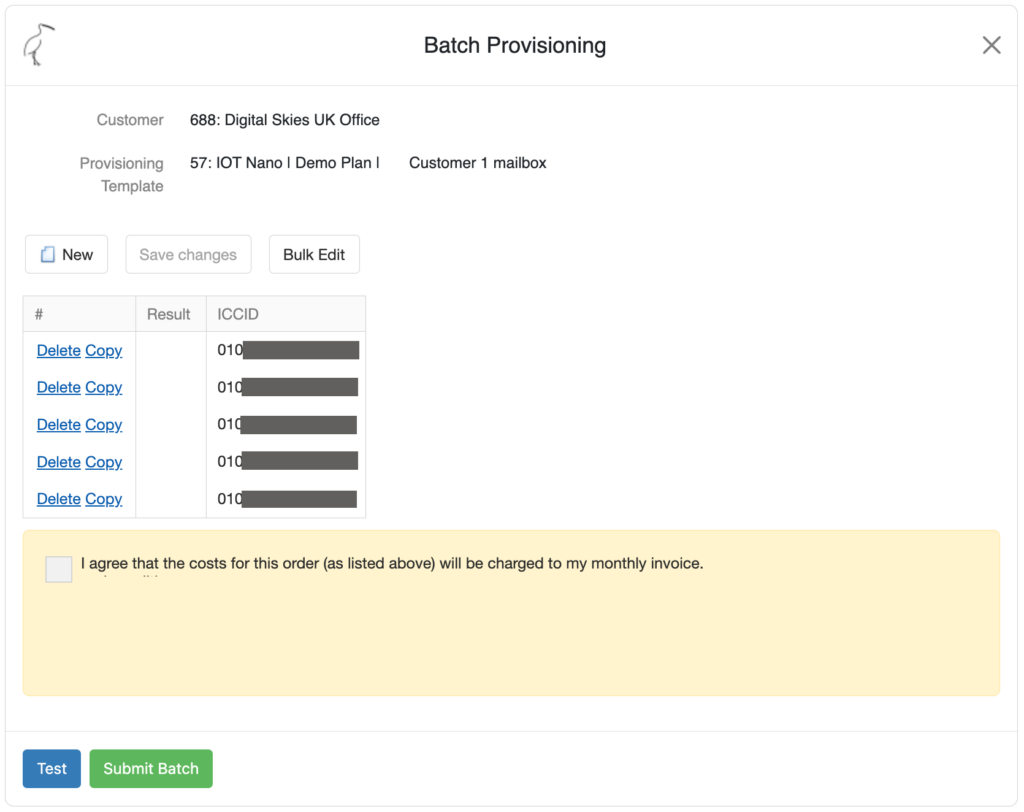
After submittal, provisioning tasks for each device will be generated. The orders are placed in a one minute processing time for each order, accommodating the time limitation process in SDP. The example above where 7 devices are placed in a batch provisioning will take 7 minutes to be processed.

NOTE: When activating devices on a pooled subscription, select the subscription ID in the Pool field in the activation wizard or, if in bulk, in the Pool column in the batch provisioning device list.