
This page explains the options in IBIS to apply Taxes to customer invoices.
Step 1: determine the Tax Categories that are applicable to the services.
This can be done in the Tax Categories Reference Table:
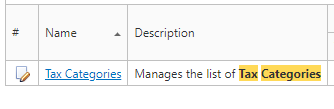
In this table, the different categories can be entered that can be assigned to fee types, airtime products, service types (for example voice calls to defined destination/country) etc.
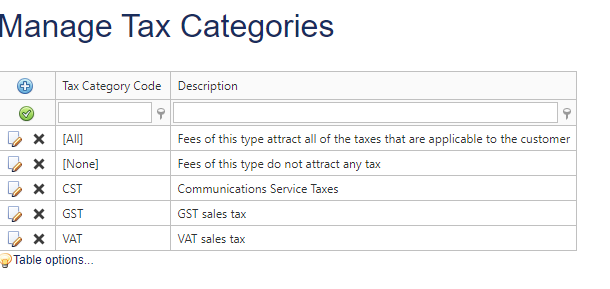
Step 2: enter Tax Codes and associated percentages.
This is done in the Tax Codes Reference Table:
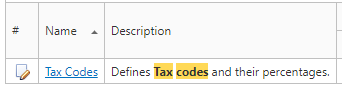
To create a new Tax Code, select 
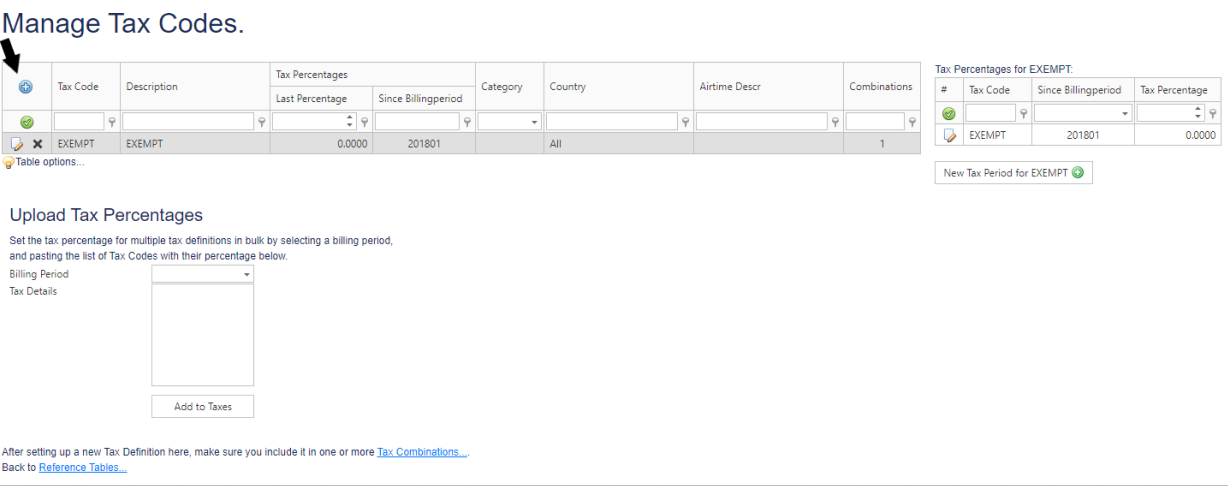
Enter tax details:
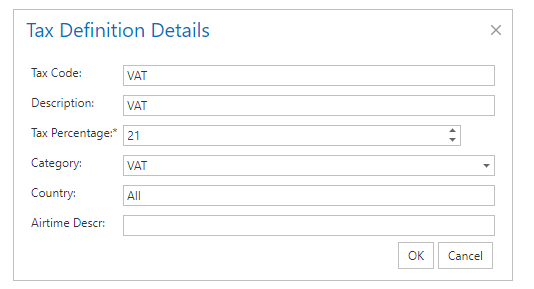
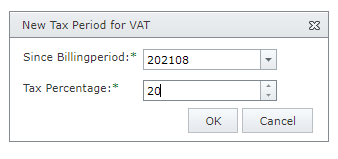
After saving the Tax Code, it will appear on the list of Tax Codes. When selecting the Tax Code the row will be gray highlighted and the Tax Percentages per billing period will pop up. When a tax percentage changes, the change can be entered while savind the percentages for previous billing periods. If an invoice of a closed billing period needs to be regenerated it will calculate taxes based on the tax percentage applicable for that billing period.

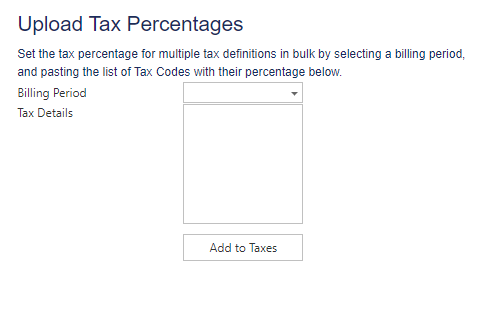
There is also an option to bulk change to tax percentage in the Upload tool:
Step 3: set up the Tax Combinations that can be assigned to a customer account (see Customer Account Creation – Billing details)
This is done in the Tax Combinations Reference Table:
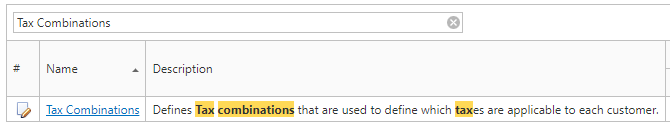
NOTE: Tax Combination Codes are required to apply any tax to a customer account, even if the Tax Combination exists of one Tax Code.
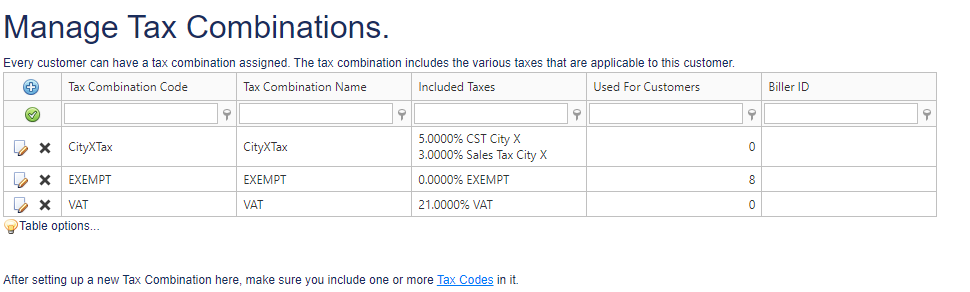
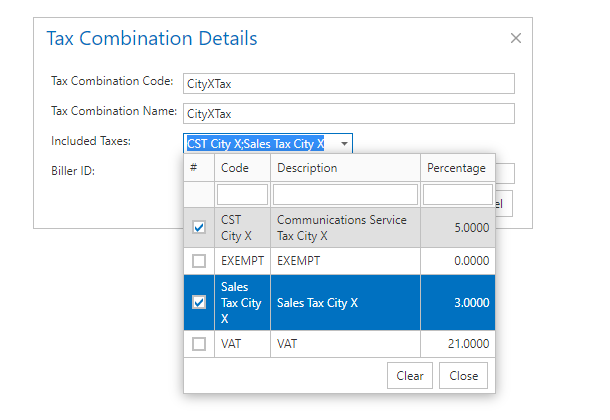
An example of a Tax Combination existing of multiple taxes that are applicable to a Customer account from CityX:
Example of Customer billing details with this Tax Combination:
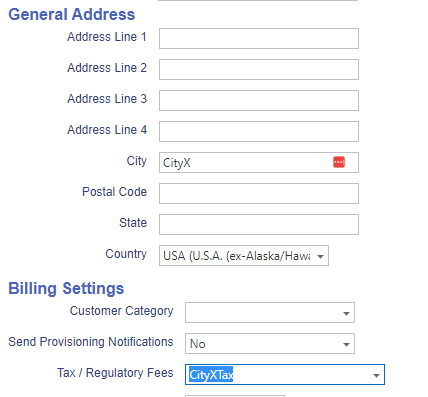
The Tax Combination on a customer account can be changed. The change will apply to the first billing period cycle that is run after the new Tax Combination has been entered in the Customer Billing details. If it is required to have the Tax applied to an invoice generated before this change, the invoice can be regenerated.
VAT (EU)
If the below setting is enabled, entering a VAT nr for a customer with a EU country address, is mandatory. This VAT code field will appear in the Customer Billing details. VAT is either charged according to the tax combination in the selected tax code, or not charged (tax code Exempt) with notation of VAT nr with text VAT reverse charge.
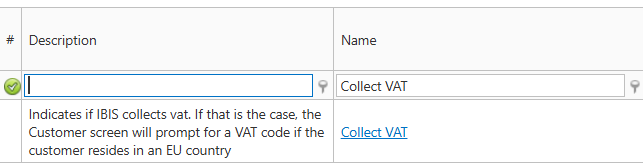
If a Country is considered applicable for VAT charge, is defined in the Countries Refences table:
